Yes, you can set up pre-orders on Shopify without an app. I won’t hide that from you.
But here’s what nobody tells you - it takes hours of work, breaks when you update your theme, and you’ll spend more time managing pre-orders than actually selling them.
This guide shows you four manual methods to set up pre-orders without an app. I'll walk through each method step-by-step, explain exactly what's involved, and show you the real limitations you'll face. By the end, you'll understand why most merchants end up using a pre-order app — and why that's not a bad thing. If you're already leaning toward the app route, our complete guide to setting up pre-orders on Shopify walks you through the entire process in under 30 minutes.
Table of Contents
- Can You Do Pre-Orders on Shopify Without an App?
- Method 1: Product Variants (Easiest Manual Method)
- Method 2: Product Description Notice
- Method 3: Theme Code Editing (Advanced)
- Method 4: Draft Orders
- Limitations of Manual Pre-Order Methods
- Manual vs. App Comparison
- Why K1 PreOrder App is Better
- Bonus Tip: Build Trust Before Asking for Pre-Orders
- FAQ
- Conclusion
Can You Do Pre-Orders on Shopify Without an App?
Yes, technically you can set up pre-orders on Shopify without installing an app. Four manual methods exist, each with different complexity levels and trade-offs.
The real question isn’t “can you?” - it’s “should you?” Manual pre-order methods work for simple, one-time campaigns. But they require technical skills, constant maintenance, and lack the automation that makes pre-orders actually profitable.
Here’s what you need to know: manual methods give you basic functionality, but you’ll manually manage inventory settings, track orders without automated tagging, and fix broken code after every theme update. For merchants running ongoing pre-orders or selling out-of-stock items regularly, these limitations add up to lost sales and wasted time.
Let’s look at each method, what it takes to implement, and what you’ll actually face when using it.
Method 1: Product Variants (Easiest Manual Method)
The product variant method is the simplest way to add pre-orders without coding. You create a separate “Pre-Order” variant for products you want to offer as pre-orders.
How It Works
Instead of modifying your theme or writing code, you add a new option to your product:
- Go to your product in Shopify admin
- Add a new option called “Availability” or “Type”
- Create two values: “In Stock” and “Pre-Order”
- Set different inventory for each variant
- Optionally price them differently
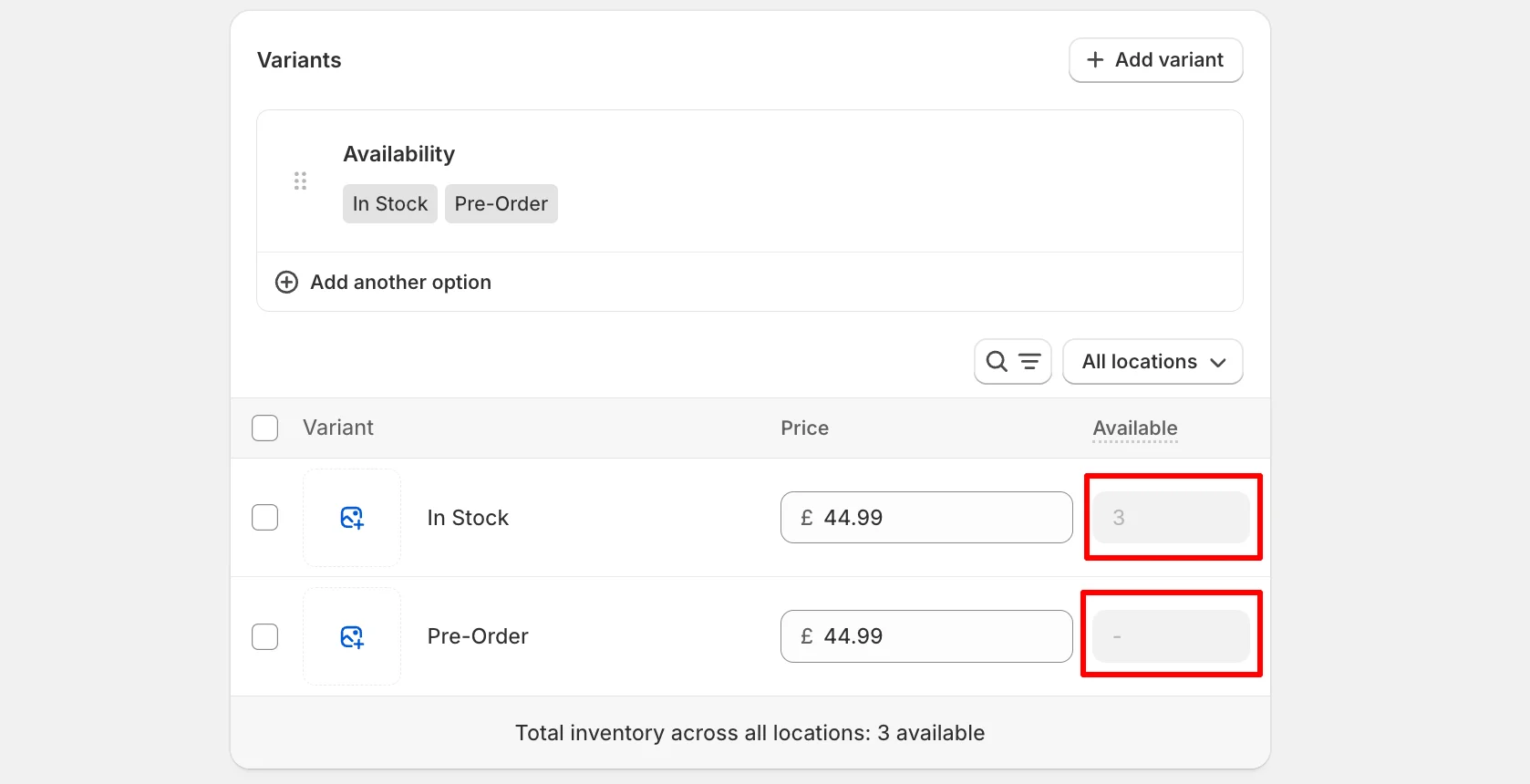
Example: A jacket product would have:
- In Stock - £44.99, 3 units available
- Pre-Order - £44.99, unlimited units available
Step-by-Step Setup
Step 1: Add product option
- Products → Select product → Variants section
- Click "Add variant option"
- Option name: "Availability" (or "Status", "Type")
- Add values: "In Stock" and "Pre-Order"
Step 2: Configure inventory
- For "In Stock" variants: Set actual inventory quantity
- For "Pre-Order" variants: Set high quantity (999) and enable "Continue selling when out of stock"
- Track inventory for both variants
Step 3: Set pricing
- Keep same price for both (recommended)
- Or offer discount on pre-orders to incentivize early orders
Pros and Cons
✅ Pros:
- No coding required - anyone can set this up
- Works with any theme immediately
- Easy to understand and manage
- Customers can choose between in-stock and pre-order
- Theme updates won't break functionality
❌ Cons:
- Clutters your variant list (every size/color duplicated)
- Manually switch between variants as stock changes
- No automatic switching when inventory hits zero
- Customers might buy wrong variant by mistake
- No special order tagging for fulfillment
- Doesn't scale well with many products or variants
Best for: Merchants with few products, one-time campaigns, or testing pre-orders before committing to automation.
Method 2: Product Description Notice
The description notice method is even simpler - just tell customers in the product description that it’s a pre-order. No variants, no coding, just clear communication.
How It Works
You add a pre-order notice directly to your product description and enable Shopify’s “Continue selling when out of stock” setting. Customers see “Add to Cart” button with pre-order information in the description.
Step-by-Step Setup
Step 1: Enable continue selling
- Products → Select product → Inventory section
- Check “Continue selling when out of stock”
- Save changes
Step 2: Add pre-order notice to description
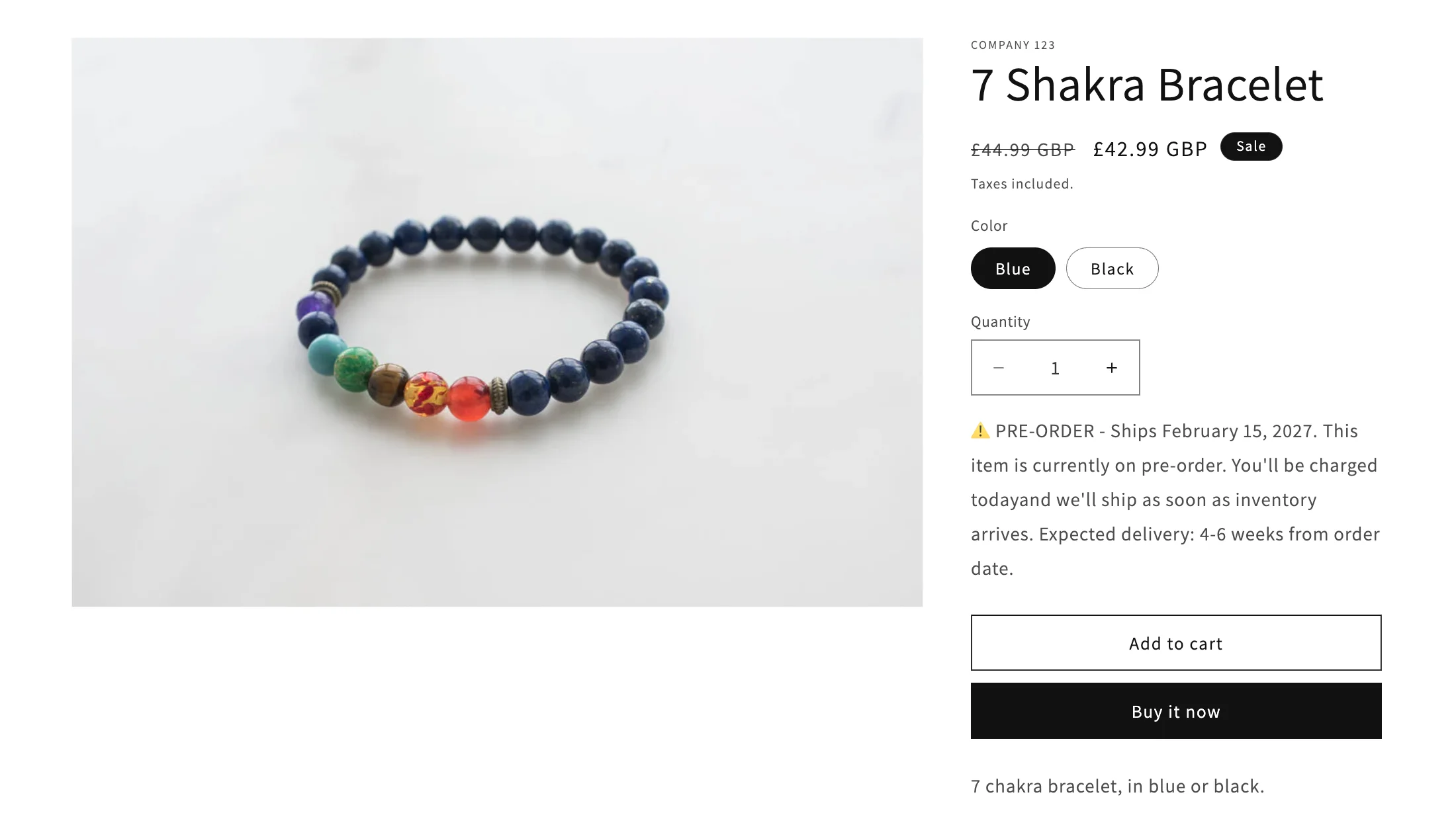
Add clear text at the top of your product description:
⚠️ PRE-ORDER - Ships February 15, 2027

This item is currently on pre-order. You'll be charged today
and we'll ship as soon as inventory arrives. Expected delivery:
4-6 weeks from order date.
Step 3: Set inventory to zero
- Set current inventory quantity to 0
- This triggers "out of stock" status
- But customers can still add to cart (because CSWOOS is enabled)
Pros and Cons
✅ Pros:
- Extremely simple - takes 2 minutes
- No technical knowledge required
- Works with any theme
- No cost or app installation
- Easy to remove when stock arrives
❌ Cons:
- Easy for customers to miss the notice
- Button still says "Add to Cart" (not "Pre-Order")
- No visual distinction from regular products
- No automatic order tagging
- Can't schedule start/end dates
- Must manually remember to disable CSWOOS when stock arrives
- No collection-level or batch management
Best for: Very simple one-time pre-orders, testing demand, or situations where you’re personally communicating with customers.
Method 3: Theme Code Editing (Advanced)
For merchants comfortable with code, you can modify your theme to automatically show “Pre-Order” instead of “Add to Cart” when inventory is zero.
How It Works
You edit your theme’s Liquid template files to check inventory levels and conditionally display different button text and messaging. This requires understanding Liquid (Shopify’s templating language), HTML, and basic JavaScript.
What You’ll Need to Edit
Files to modify:
product.liquidormain-product.liquid(product page template)cart.liquidorcart-drawer.liquid(cart display)- Theme CSS (for styling)
- Product form JavaScript (for cart behavior)
Basic Code Example
Here’s simplified Liquid code for the product page:
{% comment %} Check if product is out of stock {% endcomment %}
{% assign available_inventory = 0 %}
{% for variant in product.variants %}
  {% assign available_inventory = available_inventory | plus: variant.inventory_quantity %}
{% endfor %}

{% if available_inventory <= 0 %}
  {%- comment -%} Pre-order button {%- endcomment -%}
  <button type="submit" name="add" class="btn btn--pre-order">
    Pre-Order Now - Ships in 4 Weeks
  </button>
  <p class="pre-order-notice">
    This item is on pre-order. Expected ship date: March 1, 2026
  </p>
{% else %}
  {%- comment -%} Regular add to cart {%- endcomment -%}
  <button type="submit" name="add" class="btn btn--add-to-cart">
    Add to Cart
  </button>
{% endif %}
Required Additional Changes
1. Enable CSWOOS via code:
You can’t enable “Continue selling when out of stock” via theme code - you must still do this manually in product settings or use the Shopify API.
2. Cart modifications:
Add code to show pre-order status in cart:
{% if item.variant.inventory_quantity <= 0 %}
  <span class="cart-item__pre-order">Pre-Order</span>
{% endif %}
3. CSS styling:
.btn--pre-order {
  background-color: #f39c12;
  color: white;
}

.pre-order-notice {
  color: #e67e22;
  font-weight: bold;
  margin-top: 10px;
}
Pros and Cons
✅ Pros:
- Button text changes automatically based on inventory
- Custom control over appearance and messaging
- No monthly app fees
- Can match your exact brand requirements
❌ Cons:
- Requires Liquid/JavaScript knowledge (2-4 hours work for beginners)
- Breaks when theme updates unless carefully maintained
- Must manually enable CSWOOS for each product
- No order tagging without additional code
- Hard to troubleshoot if something breaks
- Different themes require different approaches
- No support if issues arise
Best for: Developers or merchants with technical team who want full customization control and don’t want recurring app costs.
Method 4: Draft Orders
The draft order method is completely manual - customers email you to request pre-orders, and you create orders for them one by one in Shopify admin.
How It Works
Instead of automating the process, you handle each pre-order as a custom order:
- Customer contacts you requesting pre-order
- You create draft order in Shopify admin
- Send invoice to customer
- Customer pays invoice
- You manually track and fulfill when inventory arrives
Step-by-Step Process
Step 1: Receive pre-order request
- Customer emails: "I want to pre-order the Blue Jacket, Size M"
- You confirm availability and pricing
Step 2: Create draft order
- Shopify Admin → Orders → Draft Orders → Create order
- Add customer information
- Add products
- Add note: "Pre-order - Ship after March 1, 2026"
- Calculate shipping
Step 3: Send invoice
- Click "Send invoice" in draft order
- Customer receives email with payment link
- They pay via Shopify checkout
Step 4: Track and fulfill
- Keep spreadsheet or notes of all pre-orders
- When inventory arrives, fulfill orders manually
- Update customers on shipping
Pros and Cons
✅ Pros:
- Complete control over each order
- Works for any product or situation
- No technical setup required
- Can offer custom pricing or bundles
- Personal touch with customers
❌ Cons:
- Extremely time-consuming (10+ minutes per order)
- Doesn't scale beyond a few orders
- Must manually track all pre-orders
- High risk of human error
- Customers must contact you first (friction)
- No automated order management
- Can't offer self-service pre-order checkout
Best for: Very small operations, custom/high-ticket items, or situations requiring personal interaction with each customer.
Limitations of Manual Pre-Order Methods
Let’s be honest about what you’re signing up for with manual pre-order methods. These aren’t minor inconveniences - they’re real business limitations that cost you time and sales.
No Automatic Out-of-Stock Detection
Manual methods require you to track inventory yourself. When a product sells out:
- You must manually enable “Continue selling when out of stock”
- You must manually add pre-order messaging
- You must remember to remove pre-order when stock returns
- Miss this step? You show “Sold Out” and lose sales
Real cost: Every hour of downtime between stockout and pre-order setup is lost revenue.
No Order Tagging for Fulfillment
Orders don’t automatically get tagged as “Pre-Order”, which means:
- You can’t filter pre-orders in your order list
- Risk of shipping pre-orders early (before inventory arrives)
- Manual tracking in spreadsheets required
- No integration with fulfillment services
- Support team can’t quickly identify pre-orders
Real cost: Fulfillment mistakes, customer complaints, and time wasted tracking orders manually.
Manual Inventory Management
You manually manage Shopify’s inventory settings for every product:
- Enable/disable “Continue selling when out of stock”
- Update inventory quantities when stock arrives
- Remember original settings for each product
- Repeat for every product and variant
Real cost: 10-15 minutes per product, every time inventory changes. That’s hours per month for active catalogs.
Theme Updates Break Code
If you used Method 3 (theme code editing):
- Theme updates overwrite your custom code
- You must reapply changes after every update
- Each theme version requires re-testing
- Risk of breaking your store if code conflicts arise
Real cost: 2-4 hours work every time you update your theme, plus risk of downtime.
No Scheduled Campaigns
Manual methods don’t support automation:
- Can’t schedule pre-order start date
- Can’t auto-end campaign on specific date
- Must manually check and update daily
- Can’t run multiple pre-orders with different timelines
Real cost: Either set reminders and check daily, or miss campaign deadlines and frustrate customers.
No Analytics or Tracking
You have no data on:
- How many pre-orders converted
- Which products perform best as pre-orders
- Revenue from pre-orders vs regular sales
- Customer pre-order behavior
- Campaign performance over time
Real cost: Making business decisions without data. You’re flying blind.
High Risk of Human Error
Every manual step is an opportunity for mistakes:
- Forget to enable CSWOOS → “Sold Out” appears
- Forget to disable CSWOOS → overselling when stock arrives
- Wrong inventory quantity → customer confusion
- Miss removing pre-order notice → products show as pre-order when in stock
- Wrong date in messaging → customer expectations misaligned
Real cost: Customer support tickets, refunds, negative reviews, and lost trust.
Manual vs. App Comparison
Here’s an objective comparison between manual pre-order methods and using K1 PreOrder app:
| Feature | Manual Methods | K1 PreOrder App |
|---|---|---|
| Setup Time | 2-4 hours (coding) or 10 min per product (manual) | 5 minutes total |
| Coding Required | Yes (for automation) | No |
| Auto Out-of-Stock Detection | No - manual monitoring | Yes - automatic |
| Button Text Changes | Manual or custom code | Automatic |
| Order Tagging | Manual spreadsheet tracking | Automatic “Pre-order” tag |
| Scheduled Campaigns | No | Yes - set start/end dates |
| Bulk Product Management | No - one by one | Yes - collections and rules |
| Rule-Based Campaigns | No — same settings for all products | Yes — different rules per product/collection |
| CSWOOS Management | Manual for each product | Automatic enable/disable |
| Theme Update Compatibility | Breaks with updates | Never breaks |
| Cart/Checkout Messages | Custom code required | Built-in |
| Multilingual Support | Manual translation per product | Automatic for all store languages |
| Inventory Threshold Triggers | No | Yes - trigger at X units |
| Partial Payments / Deposits | Not possible | Built-in (percentage, fixed amount, pre-authorization) |
| Dynamic Product Info (Metafields) | Manual editing per product | Automatic via Shopify metafield variables |
| Analytics & Reporting | None | Built-in dashboard |
| Support | None | Live chat support |
| Monthly Cost | $0 (but your time = money) | Free plan available |
| Maintenance | Ongoing (hours/month) | None |
Time Investment:
- Manual: 10-20 hours setup + 5-10 hours monthly maintenance
- K1 PreOrder: 5 minutes setup + 0 hours maintenance
Your Time Value: If your time is worth $50/hour, manual methods cost you $500-1000 in setup plus $250-500 monthly. That’s $3,500-6,500 per year in opportunity cost - far more than any app subscription.
Why K1 PreOrder App is Better
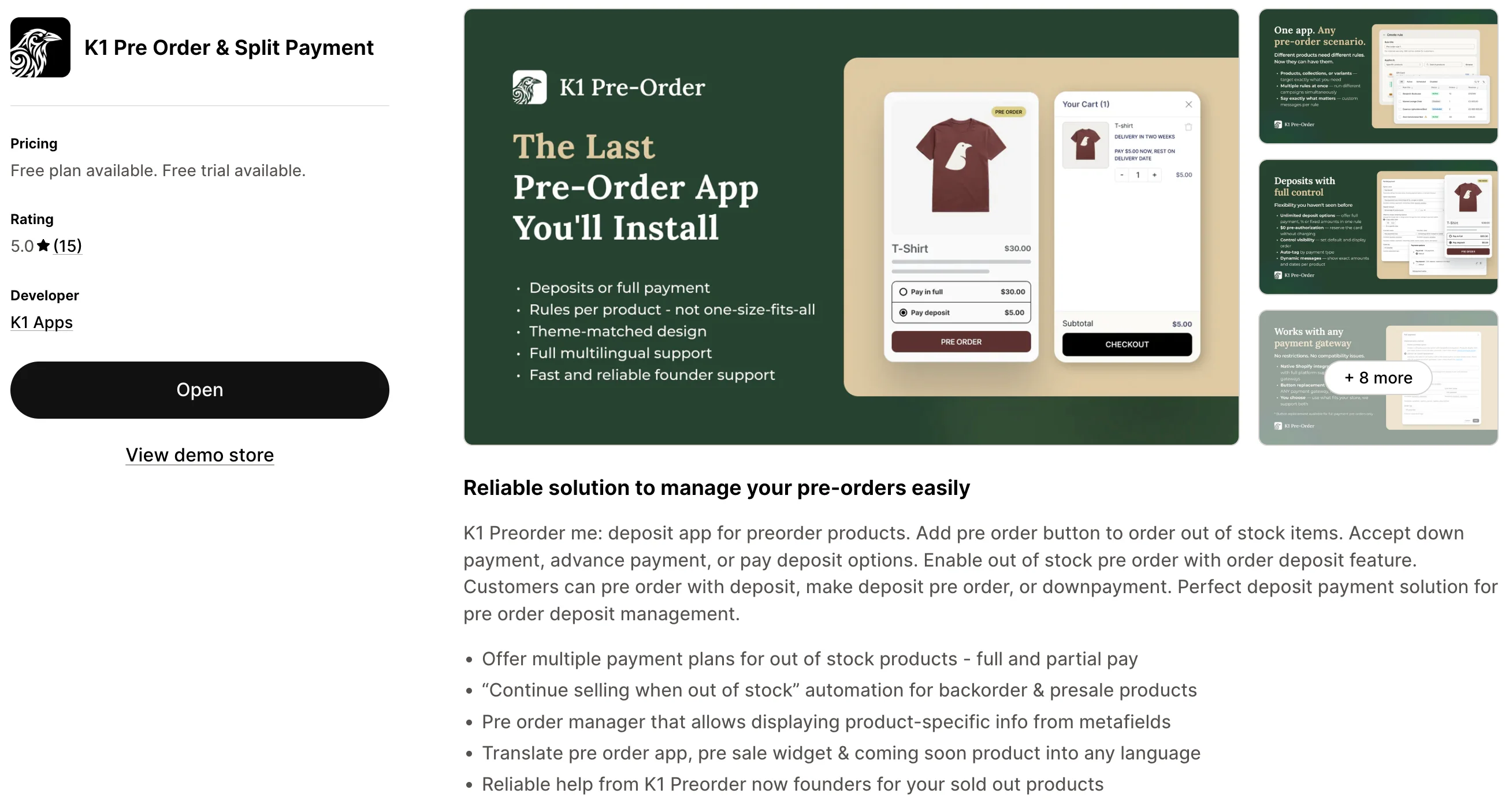
After seeing the manual methods and their limitations, let's talk about why most merchants choose K1 PreOrder app instead. It's not just automation of manual tasks — K1 PreOrder gives you capabilities that are simply impossible with manual methods.
5-Minute Setup (vs. Hours of Work)
K1 PreOrder installs like any Shopify app:
- Install from App Store (1 minute)
- Enable app embed in theme (30 seconds)
- Create first pre-order rule (3 minutes)
- Done
No coding. No theme editing. No inventory settings to manage manually. You're live with pre-orders in less time than it takes to read Method 3's code example.
Rule-Based Pre-Order System
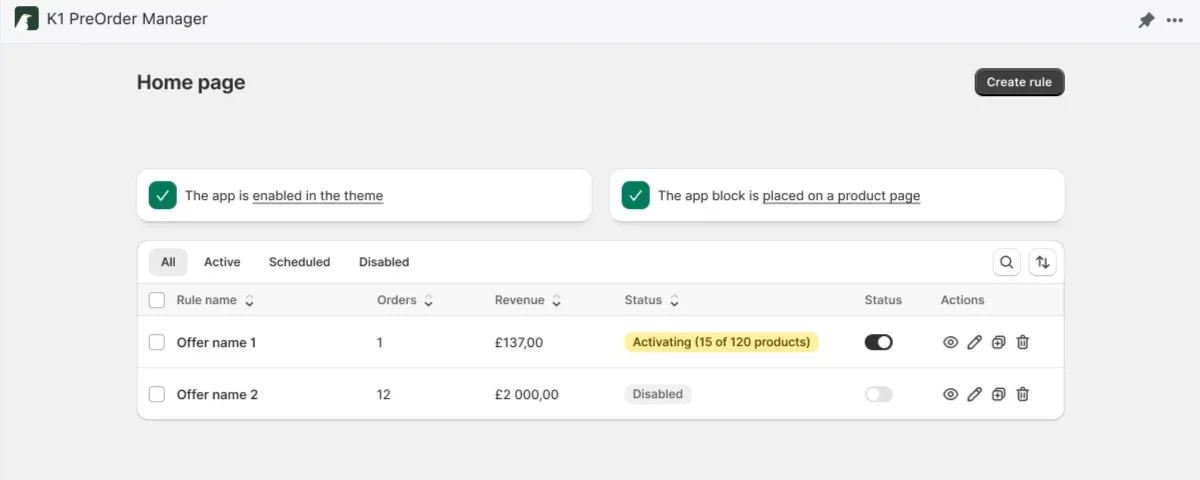
This is where K1 PreOrder fundamentally differs from manual methods — and from most other pre-order apps. Instead of a single global setting, you create separate rules for different products or collections, each with its own configuration:
- Different settings per product group — one rule for a new collection launch with full payment, another for restocking items with a 30% deposit
- Variant-level targeting — apply pre-order to specific sizes or colors, not the entire product. No manual method can do this.
- Multiple simultaneous campaigns — run different pre-order promotions at the same time with different messages, payment options, and schedules
- Three display modes — show pre-order always, when out of stock, or below a custom inventory threshold. Manual methods only give you binary: in stock or not.
With manual methods, every product gets the same treatment. With K1 PreOrder, your pre-order strategy is as flexible as your catalog demands.
Automatic Out-of-Stock Detection
K1 PreOrder monitors your inventory across all locations in real-time. When a product hits zero (or any threshold you set):
- Pre-order button appears automatically
- "Continue selling when out of stock" enabled automatically
- Regular "Add to Cart" returns when stock arrives
- No manual intervention required
You never show "Sold Out" again. Every stockout becomes a pre-order opportunity.
Partial Payments and Deposits
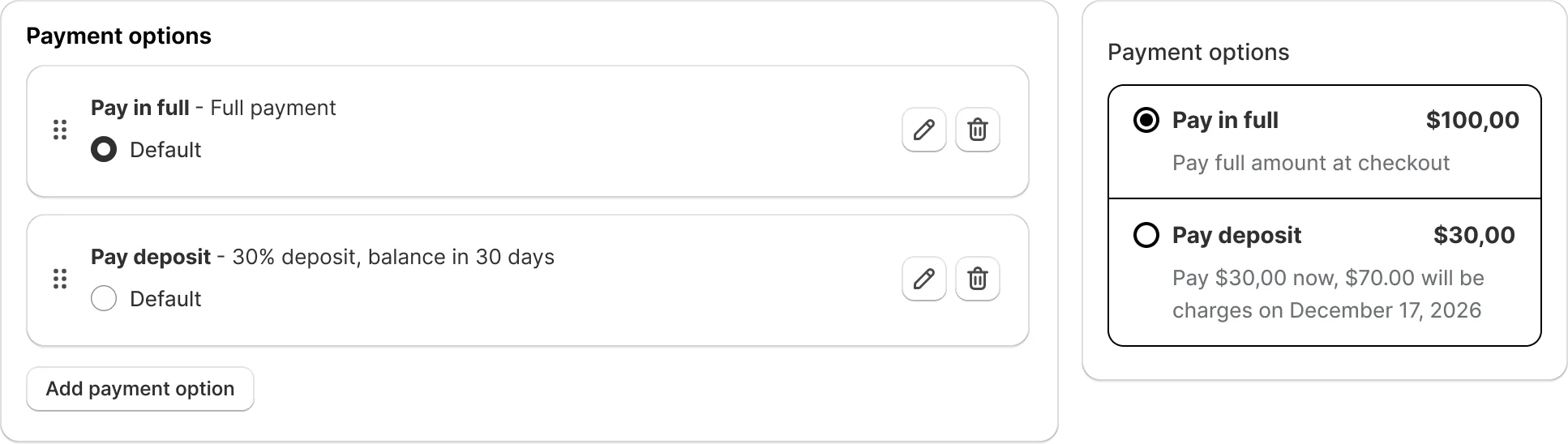
This is something no manual method can replicate. K1 PreOrder lets you offer flexible payment options for pre-orders:
- Deposit as percentage or fixed amount — charge 30% upfront, or a flat $50 deposit
- Pre-authorization option — authorize the full amount with $0 upfront charge
- Scheduled balance collection — automatically charge the remaining balance X days after order or on a specific date
- Multiple payment options per rule — let customers choose between full payment and deposit within the same pre-order
- Dynamic messages — use variables like {payment}, {remaining}, and {date} to show customers exactly what they're paying and when
Deposits can lower the upfront barrier to purchase and make a pre-order commitment feel more manageable. That payment flexibility is difficult to reproduce with a product description notice or a variant workaround.
Some merchants go a step further and pair deposits with a loyalty layer — issuing store credit or VIP status for customers who commit early, so the deposit itself becomes a reward moment instead of just a payment step. It's a small addition that turns “I paid a deposit” into “I'm now a VIP.”
Smart Order Tagging
Every pre-order gets tagged automatically in Shopify:
- Filter pre-orders:
Orders → Tag: Pre-order - Separate fulfillment workflow
- Integrates with fulfillment services
- Support team identifies pre-orders instantly
- No spreadsheet tracking needed
Pre-Order Badge
Manual methods only affect the product page. K1 PreOrder adds a customizable pre-order badge that appears on:
- Collection pages
- Homepage featured products
- Search results
Customers know an item is available for pre-order before they even click on it. This drives more traffic to pre-order products and sets expectations early.
Multilingual Support
Selling internationally? K1 PreOrder automatically translates all storefront elements — buttons, messages, badges — into every language published in your Shopify store. With manual methods, you'd need to rewrite every product description and code snippet for each language yourself.
Dynamic Variables with Metafields
Insert Shopify metafields into your pre-order messages to show product-specific information automatically — like individual delivery dates, restock dates, or any custom data. Dates are formatted based on store language. With manual methods, you'd edit each product description individually every time a date changes.
Works with Any Theme
K1 PreOrder uses Shopify's app embed system. This means:
- Compatible with all modern themes (Dawn, Sense, etc.)
- Works with custom themes
- Theme updates never break functionality
- No code modifications to maintain
- Switch themes anytime without losing pre-orders
Design Customization
- Inherit theme styles — pre-order button automatically adopts your theme's button styling for a seamless look
- Customizable widget — adjust the payment options widget design with real-time preview
- Custom CSS/JS support — for merchants who want pixel-perfect control without editing theme files
Professional Support
When something doesn't work or you need help:
- Live chat support in the app
- Theme compatibility assistance
- Setup help for complex catalogs
- No "figure it out yourself" like with custom code
Real Cost Comparison
Manual Method Total Cost (Year 1):
- Setup: 15 hours × $50/hr = $750
- Monthly maintenance: 8 hours × $50/hr × 12 months = $4,800
- Theme update fixes: 4 hours × $50/hr × 3 updates = $600
- Total: $6,150/year in time cost
K1 PreOrder Cost (Year 1):
- Setup: 5 minutes = negligible
- Monthly subscription: Free plan available, paid plans start at $9.99/month
- Maintenance: $0 (zero hours)
- Total: $0-120/year
The app pays for itself in the first month just in time saved. That's not counting the sales you capture that would've shown "Sold Out" with manual methods.
Bonus Tip: Build Trust Before Asking for Pre-Orders
Whichever route you take — manual methods or an app — remember that a pre-order is a bigger ask than a regular purchase: customers pay today for a product that ships weeks later. Social proof does the heavy lifting here.
Display recent customer reviews prominently on your pre-order product pages with a Shopify review app so shoppers can see that you deliver on your promises. Pair the reviews with a clear expected ship date and an honest product description, and you remove the two biggest objections at once: "will it actually arrive?" and "when?". Stores with visible, recent reviews consistently convert more pre-order visitors — trust is what turns "I'll wait until it's in stock" into "take my money now."
FAQ
Q: Is it worth doing pre-orders without an app?
A: For a one-time, simple pre-order campaign with 1-2 products, manual methods (especially Method 1: Product Variants) can work fine. But if you’re:
- Running ongoing pre-orders
- Managing multiple products
- Selling out-of-stock items regularly
- Wanting to scale your pre-order strategy
Then an app will save you significant time and reduce errors. The break-even point is usually around 2-3 products or your second pre-order campaign.
Q: What’s the easiest way to do pre-orders without coding?
A: Method 1 (Product Variants) is the easiest manual approach. You create a “Pre-Order” variant alongside your “In Stock” variant. No coding required, works immediately, takes about 10 minutes per product to set up.
However, you’ll still need to manually switch inventory between variants as products sell out and restock. For truly “no work” pre-orders, an app like K1 PreOrder automates everything.
Q: Will manual pre-order methods work with any theme?
A:
- Method 1 (Variants) and Method 2 (Description): Yes, these work with any theme because they use standard Shopify features.
- Method 3 (Theme Code): No, each theme has different code structure. You'll need to adapt the code for your specific theme, and it may break with theme updates.
- Method 4 (Draft Orders): Theme-independent since it's all manual.
K1 PreOrder app works with all themes automatically via Shopify’s app embed system.
Q: Can I switch from manual methods to an app later?
A: Yes, easily. If you started with manual methods:
From Method 1 (Variants): Simply delete the “Pre-Order” variants and create normal variants. Install K1 PreOrder and create rules for those products.
From Method 2 (Description): Remove the pre-order text from descriptions. Disable “Continue selling when out of stock” if you want. Install K1 PreOrder.
From Method 3 (Code): Revert your theme to a clean version (or remove custom code). Install K1 PreOrder.
No data is lost. Existing orders remain in your order history. The transition takes about 10 minutes.
Q: How much does K1 PreOrder app cost?
A: K1 PreOrder offers:
- Free plan available for basic pre-orders
- Paid plans starting at $9.99/month with advanced features
Compare this to the time cost of manual methods (10-20 hours setup + 5-10 hours monthly maintenance). If your time is worth $50/hour, manual methods cost you $500-1000 in setup plus $250-500 monthly in opportunity cost.
View current pricing and features
Conclusion
Yes, you can absolutely set up pre-orders on Shopify without an app. I’ve shown you four methods - from simple product variants to advanced theme coding to completely manual draft orders.
Each method works. Each has a place. If you’re running a one-time pre-order for a single product launch, Method 1 (Product Variants) will get you there in 10 minutes.
But here’s what I’ve learned from merchants who tried manual methods first: the limitations catch up with you fast. You’re manually checking inventory, managing CSWOOS settings, tracking orders in spreadsheets, and fixing broken code after theme updates. That’s time you’re not spending on actually growing your business.
K1 PreOrder exists because these manual limitations add up to lost sales, wasted time, and frustrated merchants. The app eliminates every limitation we discussed: automatic out-of-stock detection, order tagging, scheduled campaigns, zero maintenance, theme compatibility, and professional support.