Overview
Each pre-order rule in K1 PreOrder has a Fulfillment and inventory card that decides how new pre-orders on Shopify are fulfilled. It has two settings:
- Preorder status — what the order shows in Shopify admin right after purchase: Unfulfilled, On hold or Scheduled.
- Deduct inventory — when stock goes down: at checkout or when the order is ready to ship.
Use it to stop pre-orders from showing as ready to ship before the product exists.
Shopify order statuses for pre-orders: Unfulfilled, Scheduled, On hold
Unfulfilled — "Ready to ship right away"
The order shows Unfulfilled in Shopify, like any regular order. This is the default.
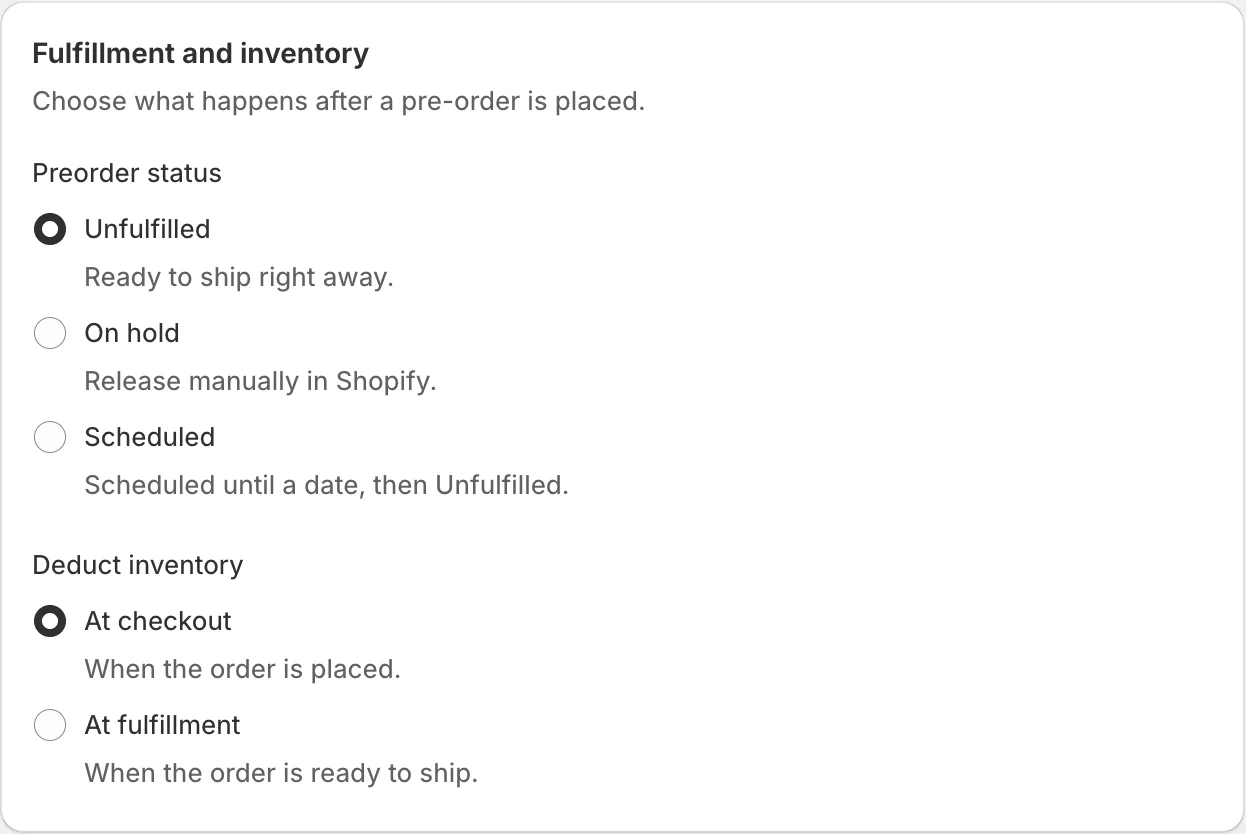
On hold — "Release manually in Shopify"
- The order shows On hold in Shopify, with the hold reason Unknown delivery date.
- When you are ready to ship, open the order in Shopify and press Release hold.
- The order then shows Unfulfilled.
- K1 PreOrder never releases this hold for you.
Scheduled — "Scheduled until a date, then Unfulfilled"
The order waits until a date, then becomes Unfulfilled. You pick how the date is set.
Specific date — "Same date for every order"
- Fill in Ready to ship on.
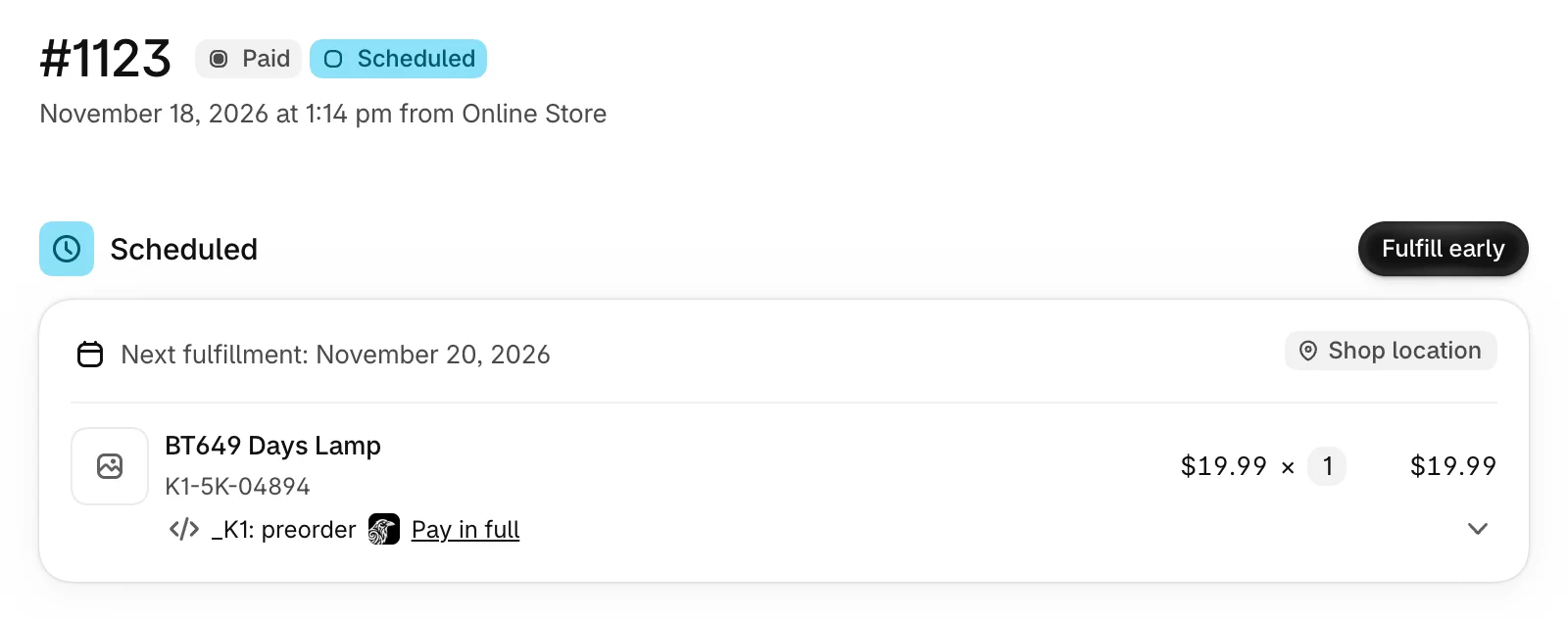
- The order shows Scheduled with Next fulfillment: <date>. The only fulfillment button is Fulfill early.
- On that date at 00:00 in your store's time zone, Shopify switches the order to Unfulfilled by itself.
- If the date has already passed, new orders are Unfulfilled right away.
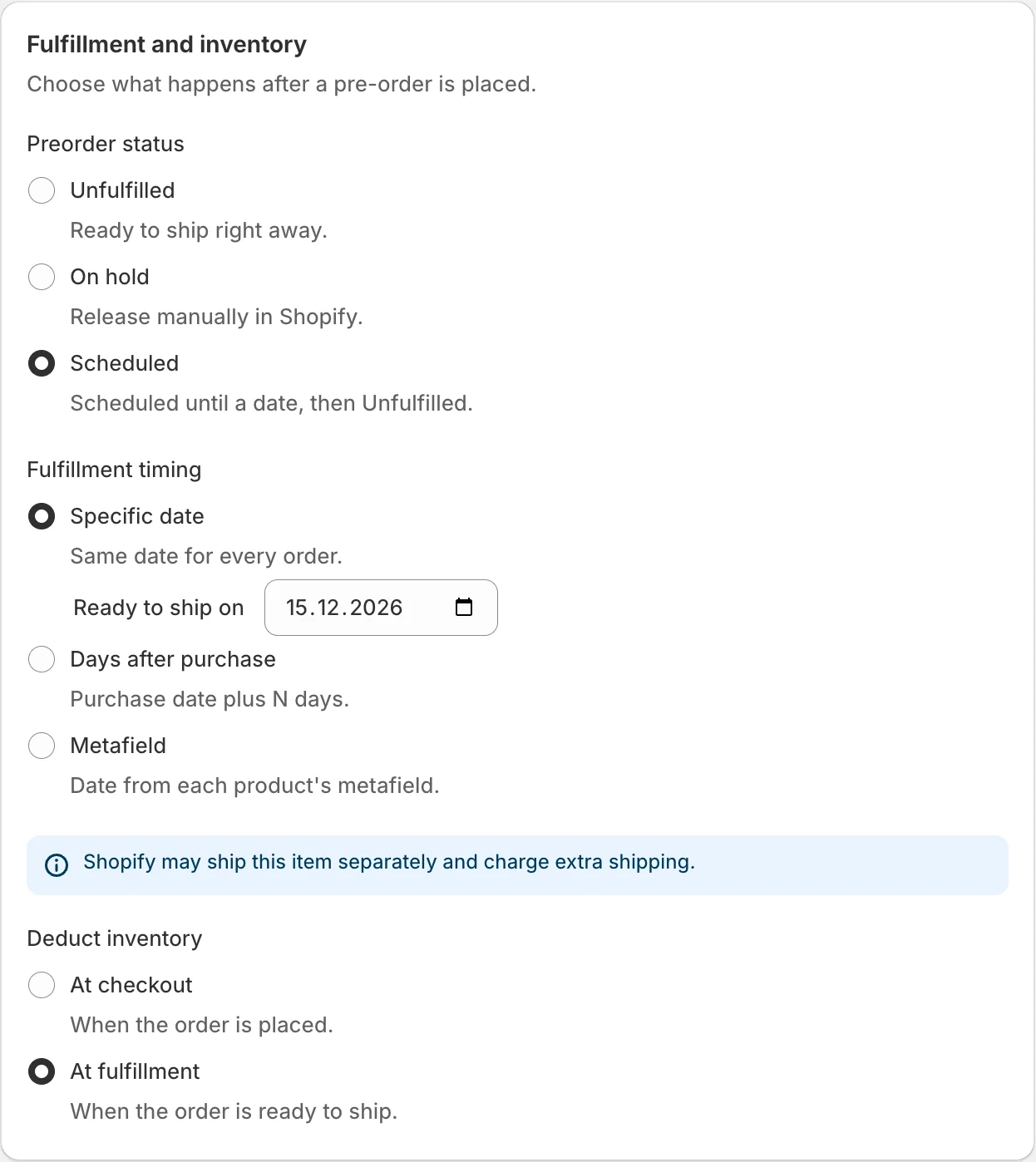
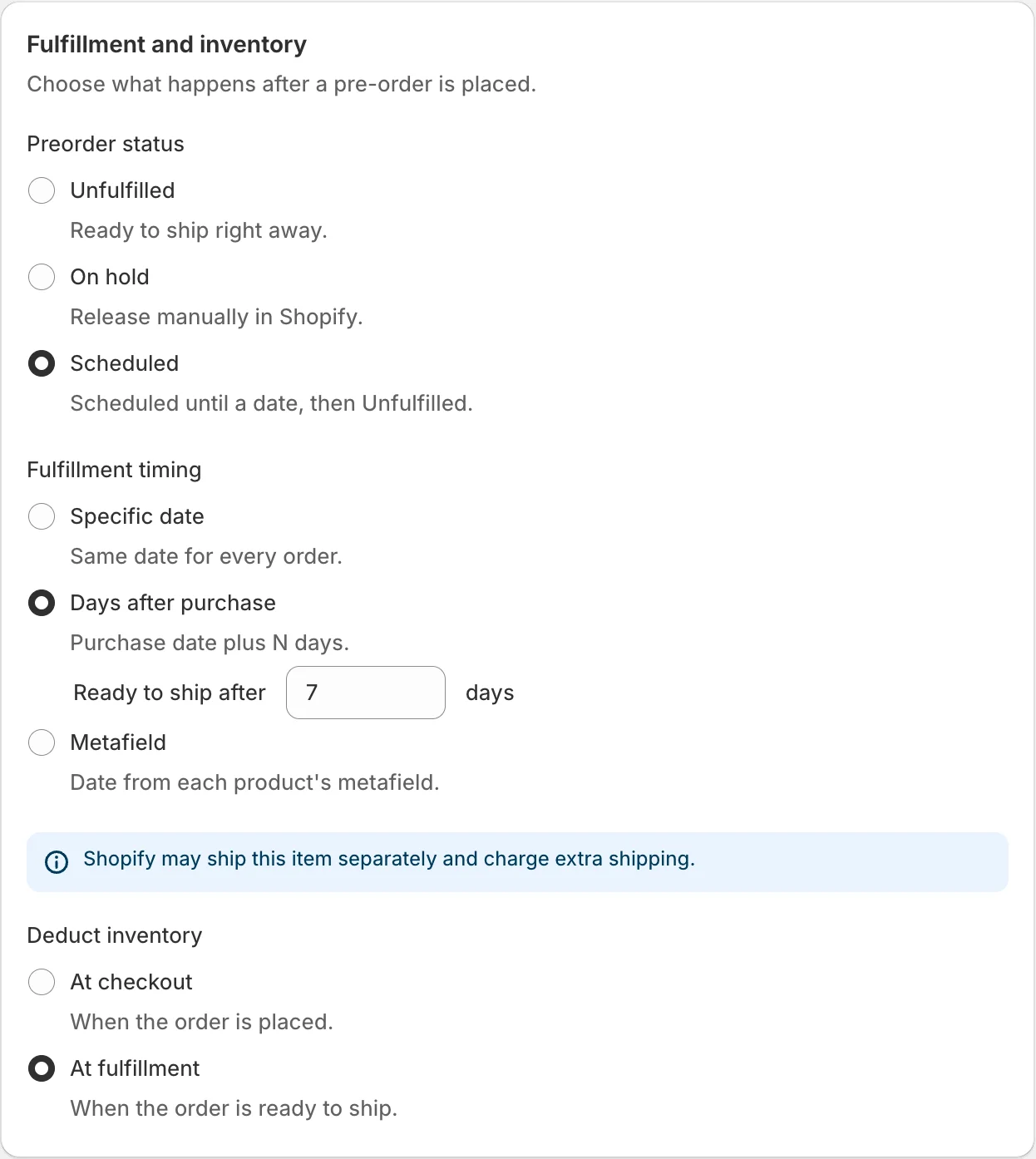
Days after purchase — "Purchase date plus N days"
- Fill in Ready to ship after [N] days.
- The ship date is the purchase date plus N calendar days (in your store's time zone).
- The order works exactly like Specific date: it shows Scheduled with Next fulfillment: <date>. The only fulfillment button is Fulfill early.
- On that date at 00:00 in your store's time zone, Shopify switches the order to Unfulfilled by itself.
- At checkout, the buyer sees Ships <date>.
Metafield — "Date from each product's metafield"
- Pick a product metafield of type Date. You create it in Shopify under Settings → Custom data → Products.
- The order shows On hold until the product's date.
- On that date, K1 PreOrder releases the hold (within about an hour after 00:00 store time). The order then shows Unfulfilled.
- The card shows this warning: "On hold until the product's date, then Unfulfilled. No date: stays on hold."
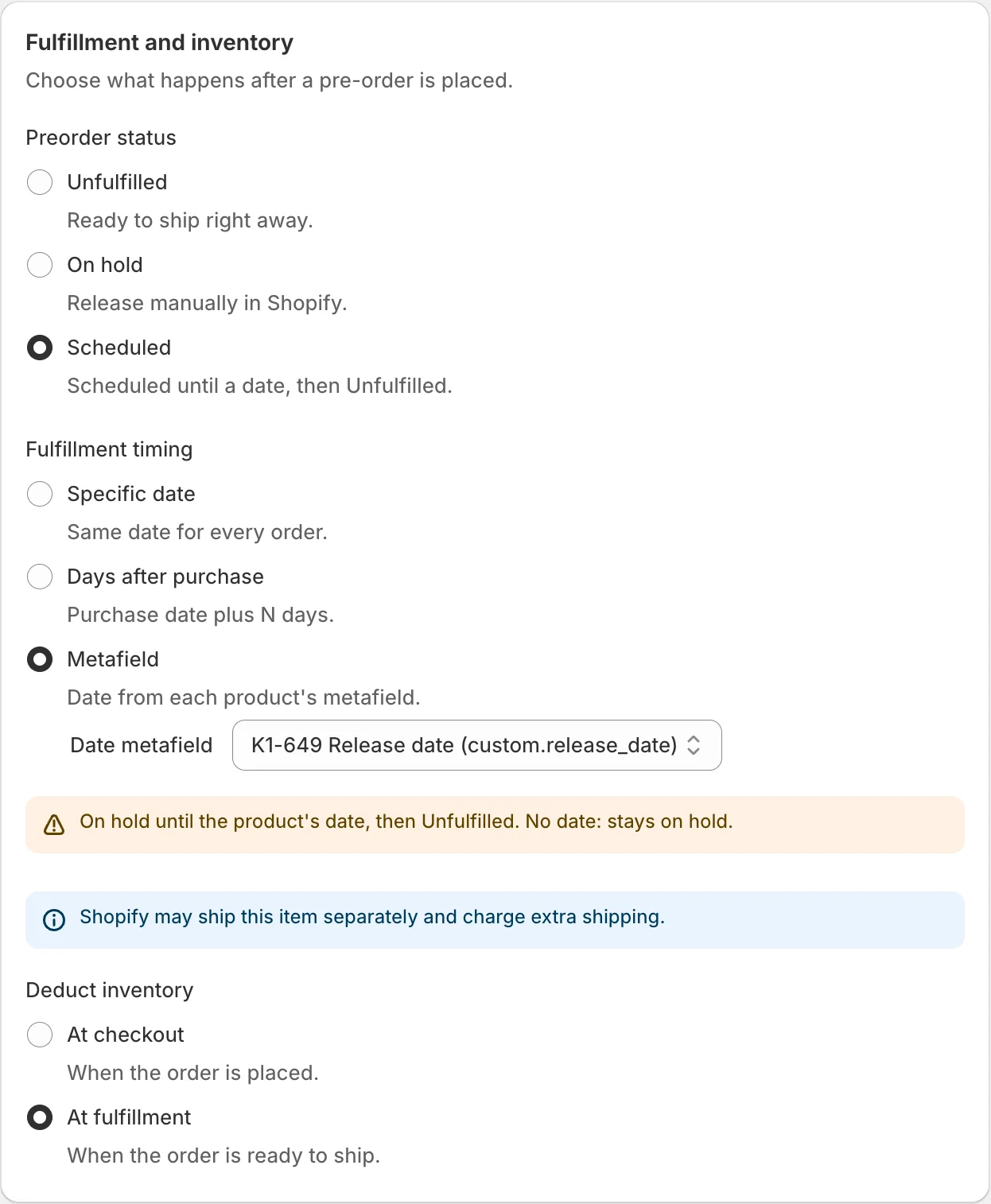
- If a product has no valid date, the order stays On hold. K1 PreOrder shows a banner on that pre-order's page in the app.
- Release it yourself in Shopify with Release hold.
- Adding the date to the product later does not release orders that were already placed.
- If one order has two products with different dates, both are released together on the later date.
When pre-order inventory is deducted
- At checkout — "When the order is placed." Stock goes down as soon as the buyer pays. This is the default.
- At fulfillment — "When the order is ready to ship." Stock is reserved (counted as committed in Shopify) only when the order becomes Unfulfilled:
- with Unfulfilled: right away;
- with Scheduled: on the date;
- with On hold: when the hold is released.
Quick comparison
Which pre-order fulfillment setting should I use?
Separate shipment at checkout
With On hold or Scheduled (before the date), Shopify may ship the pre-order item as a separate shipment and charge shipping for it separately.
The card warns you about this: "Shopify may ship this item separately and charge extra shipping."
This note is hidden if you use the Mixed-cart shipping setting in K1 PreOrder Settings. That setting already controls how the pre-order shipment is charged.
How to set up pre-order fulfillment in K1 PreOrder
- Open K1 PreOrder and go to Dashboard. Your rules are listed there.
- Open the rule you want to change, or create a new rule.
- Find the Fulfillment and inventory card.
- Choose a Preorder status and a Deduct inventory option.
- Click Save.
Notes and Limitations
- New orders only. Changing a rule does not change orders that were already placed.
- Add to Cart button replacement. These settings do not apply to pre-orders sold through the Add to Cart button replacement payment option. Those orders are handled like regular Shopify orders for fulfillment and inventory.
- Buyer cancellation. If your store allows cancellation, buyers can cancel from the customer account portal while the order is Scheduled or On hold because of these settings. If you put your own hold on the order, the buyer cannot cancel it.
- Plans. Available on every plan, including Free.