A Shopify merchant wanted a small group of upcoming products to say “Coming Soon” while other unavailable products continued to show “Sold Out.” The goal was to change the message for selected items without losing track of inventory.
It sounds like a wording change, but there are two separate decisions: what shoppers see and whether they can buy. Here is how to plan both before changing your theme.
Decide what Coming Soon means for your store
Start with the customer action, not the label.
- Announcement only: The product is visible, but customers cannot purchase it yet. A notification signup is not the same as a pre-order.
- Pre-order: Customers can place an order before the product is ready. Explain what they pay now, any balance due, and the estimated shipping window before checkout.
- Sold out: The item is unavailable and should retain the store's usual sold-out message.
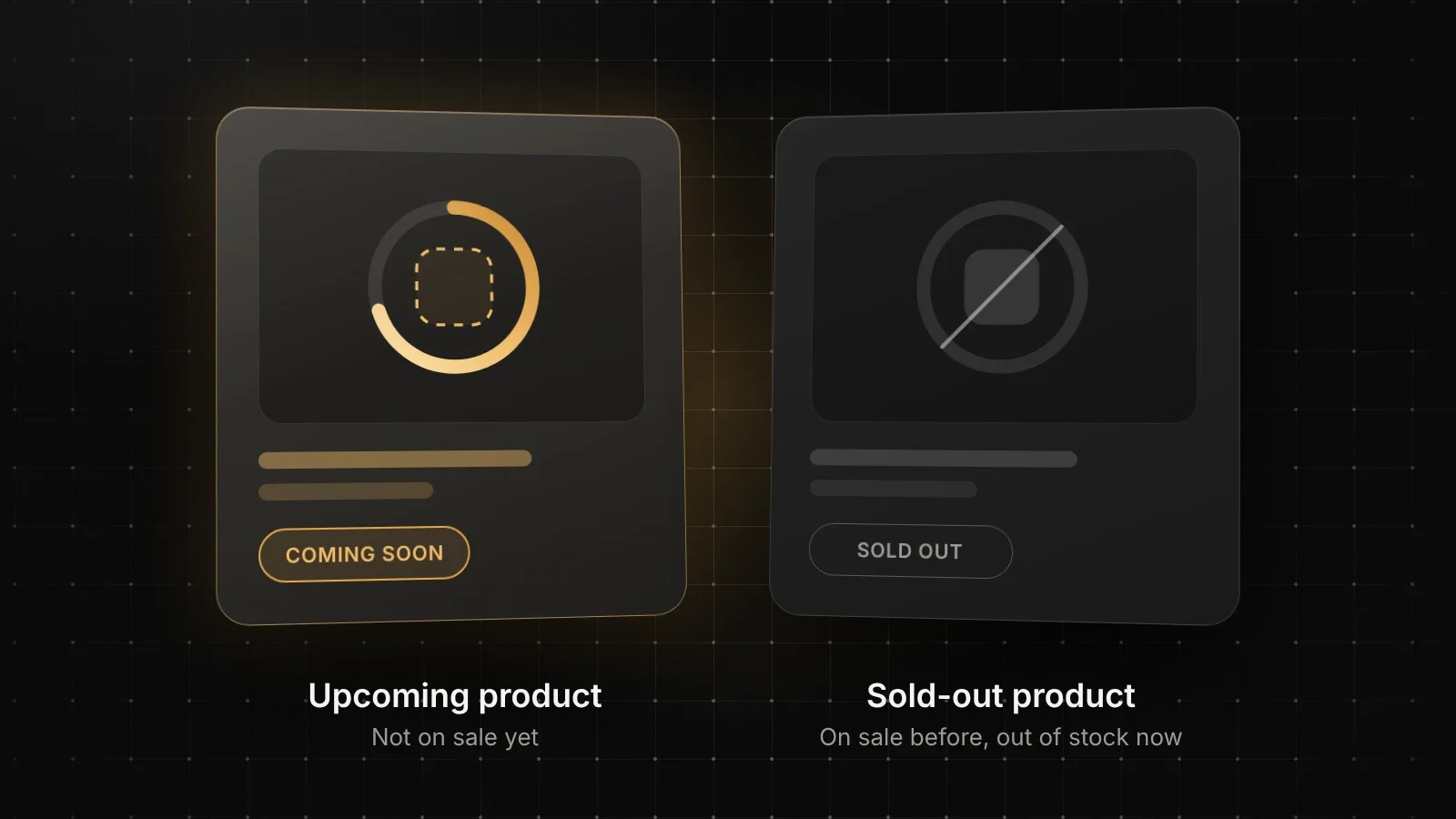
Changing a badge or button label alone does not create a pre-order, reserve stock, or change Shopify's inventory settings. Likewise, a “Coming Soon” label does not necessarily prevent a purchase. Test the actual buying experience.
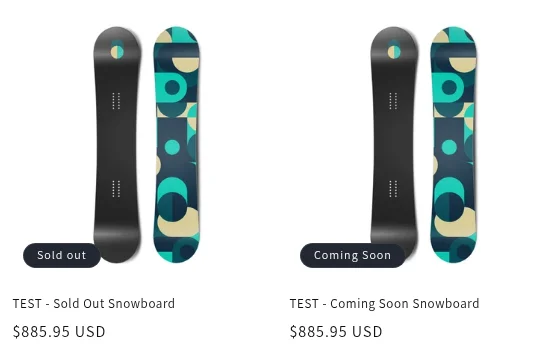
A test collection in Dawn shows distinct badges for an upcoming product and an ordinary sold-out product.
Option 1: Use your theme's product-specific settings
First, check whether your theme already offers a coming-soon product template, badge, or per-product display setting. Available controls vary by theme and version, so a setting described for another theme may not exist in yours.
In Shopify admin, go to Online Store → Themes and open the theme editor. Inspect the product page and product-card settings for the selected item. If the theme provides a suitable product template, preview it with the product and assign it in Shopify admin when ready. Shopify explains how to create, preview, and assign templates.
A product template can control the product page without necessarily changing collection cards or search results. Check each location separately. Be careful with a global theme-language change: it may replace “Sold Out” for every affected product, not just your upcoming items.
Option 2: Change the badge for selected products in Dawn
If you use Dawn and are comfortable making a small Liquid edit, you can try this product-card example. It changes the badge for tagged products that Dawn considers unavailable; it does not change the product-page button, quick-add button, checkout, inventory, or a pre-order app's behavior. Other themes and modified versions of Dawn can use different code.
1. Tag the intended products. In Shopify admin, open Products, select an upcoming product, add the tag coming-soon, and save. Repeat for the products you want to mark. Leave ordinary sold-out products untagged. Check the relevant variants' inventory and selling settings separately: a tag does not prevent a purchase.

Add the coming-soon tag to the products you intend to announce.
2. Duplicate your theme. Go to Online Store → Themes, open the actions menu for your current Dawn theme, and choose Duplicate. Work on the copy, not the live theme. See Shopify's theme duplication instructions.
3. Find the sold-out badge code. On the duplicate, open the actions menu and choose Edit code. Open snippets/card-product.liquid. Search for card_product.available == false. In the public Dawn source, there are two sold-out badge blocks using this condition. Within each badge block, find this line:
{{- 'products.product.sold_out' | t -}}4. Replace only that line inside each of those two badge blocks with the following. Leave the surrounding if, elsif, endif and badge markup in place; do not replace every sold-out translation in the file. Other matches can control buttons or accessibility text.
{%- if card_product.tags contains 'coming-soon' -%}
  Coming Soon
{%- else -%}
  {{- 'products.product.sold_out' | t -}}
{%- endif -%}
If your file does not contain the expected badge blocks, stop rather than guessing where to paste. Shopify recommends a basic understanding of Liquid before editing theme code. The literal “Coming Soon” in this example is English; a multilingual store needs a translated solution.
5. Save and preview the duplicate. Compare a tagged unavailable product, an untagged sold-out product, and an available product. Check the collection, search, and featured-product cards used by your theme. A product with at least one available variant may not receive the sold-out badge; check every variant and the actual purchase path. Test mobile, desktop, and quick add. If a product is meant to be announcement-only, verify that it cannot be added to cart or purchased, including through any app or accelerated checkout.
6. Check the product page separately. This example does not rename the product-page button, which may still say “Sold Out.” Make the announcement clear in the product description, or use a suitable theme-specific product template; do not assume the button was changed. If you need different labels per variant or consistent wording across every button, seek theme-specific help rather than applying this badge snippet to unrelated code. Publish the duplicate only after review and testing; keep the original as a backup and retest after theme updates.
When you are ready to accept pre-orders
If shoppers should be able to buy an upcoming item, plan the order workflow as well as the storefront message. Decide whether payment is full or partial, what happens to any remaining balance, and the estimated shipping window. Make those terms clear on the product page and in the order communication.
Set up a selected-product pre-order with K1
For products you are ready to sell as pre-orders, the K1 setup guide describes a rule-based approach:
- Open K1 PreOrder and create a rule. Under Applies to, select the products or variants that should be offered for pre-order. Leave unrelated sold-out items out of the rule.
- Review Display pre-order button and choose a condition that matches the campaign. Options shown in the rule editor include When product variant is out of stock and Always. Confirm the available settings and behavior in your store.
- Set the payment options and customer message. Clearly say that the customer is placing a pre-order; include the estimated shipping window and applicable payment terms. If a balance is due later, explain when and how it will be collected.
- Review the inventory settings and any Continue selling when out of stock automation before activating the rule. Check how the setup interacts with your locations, inventory apps, and fulfillment process instead of assuming a display change is inventory-neutral.
- Preview and test a selected product, its variants, and an unrelated sold-out product. Check the product page, relevant collection cards, cart, and checkout on mobile and desktop. If your theme does not display the expected result, contact K1 support with the theme details.
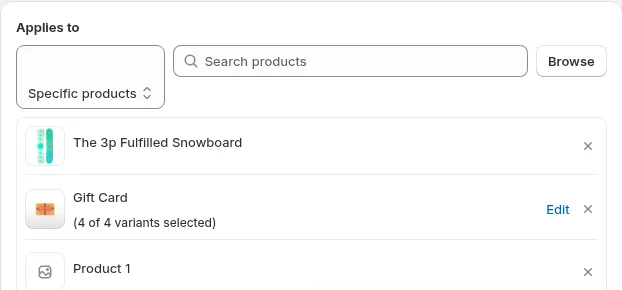
An example K1 rule uses Specific products under Applies to. These are separate from the test collection shown above.
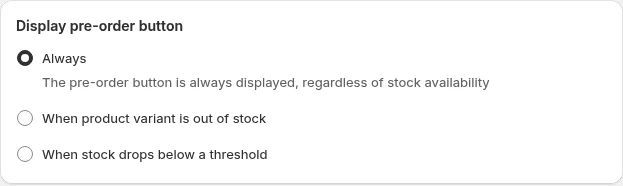
In this example rule, Always is selected; the out-of-stock and threshold options are also shown.
K1 is a pre-order option here, not a substitute for a display-only announcement. Do not label an active purchase button “Coming Soon” if the customer is actually placing an order. Where the product must remain unavailable, use a suitable theme-specific approach and test that purchase is blocked.
Test before customers see it
Use a theme preview and a store-approved test order where appropriate. Check:
| Scenario | What to verify |
|---|---|
| Selected upcoming product | The intended message appears and the product can or cannot be purchased as planned. |
| Other sold-out product | It still shows the normal sold-out state. |
| Available product | Its normal buying experience has not changed. |
| Variants | Switching between available and unavailable variants shows the right message and action. |
| Collection, search, and product pages | The messages are consistent in each location your theme uses. |
| Mobile and desktop | Labels are readable and buttons behave as expected. |
| Pre-order checkout | If purchases are enabled, payment terms and estimated shipping are clear and match the order. |
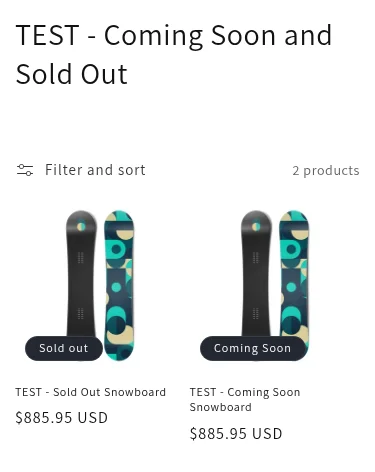
The same two test product cards in the theme editor's mobile preview. Check the purchase flow separately.
Review Shopify's inventory tracking guidance, especially the effect of Continue selling when out of stock. Do not turn it on just to change a label: it changes whether an out-of-stock item can be purchased. Check any app's inventory behavior as well.
Start with the intended customer action
For an announcement, keep the product unavailable and make the message accurate. For a pre-order, make sure the purchase, payment, and estimated fulfillment details match what the customer sees. Then test selected products and ordinary sold-out items side by side.
If you are planning to take pre-orders, see our Shopify pre-order setup guide for the broader workflow.