A customer wants 50 mugs. Your Shopify store has 30 in stock. The remaining 20 can be supplied later.
Should you limit the purchase to 30, ask the customer to place another order, or accept all 50 without explaining the difference? None of those options makes the experience particularly clear.
A ceramics merchant brought this question to our K1 team. It is a useful example of where Shopify pre-orders can help: not just when a product is completely sold out, but when available stock covers only part of what a customer needs.
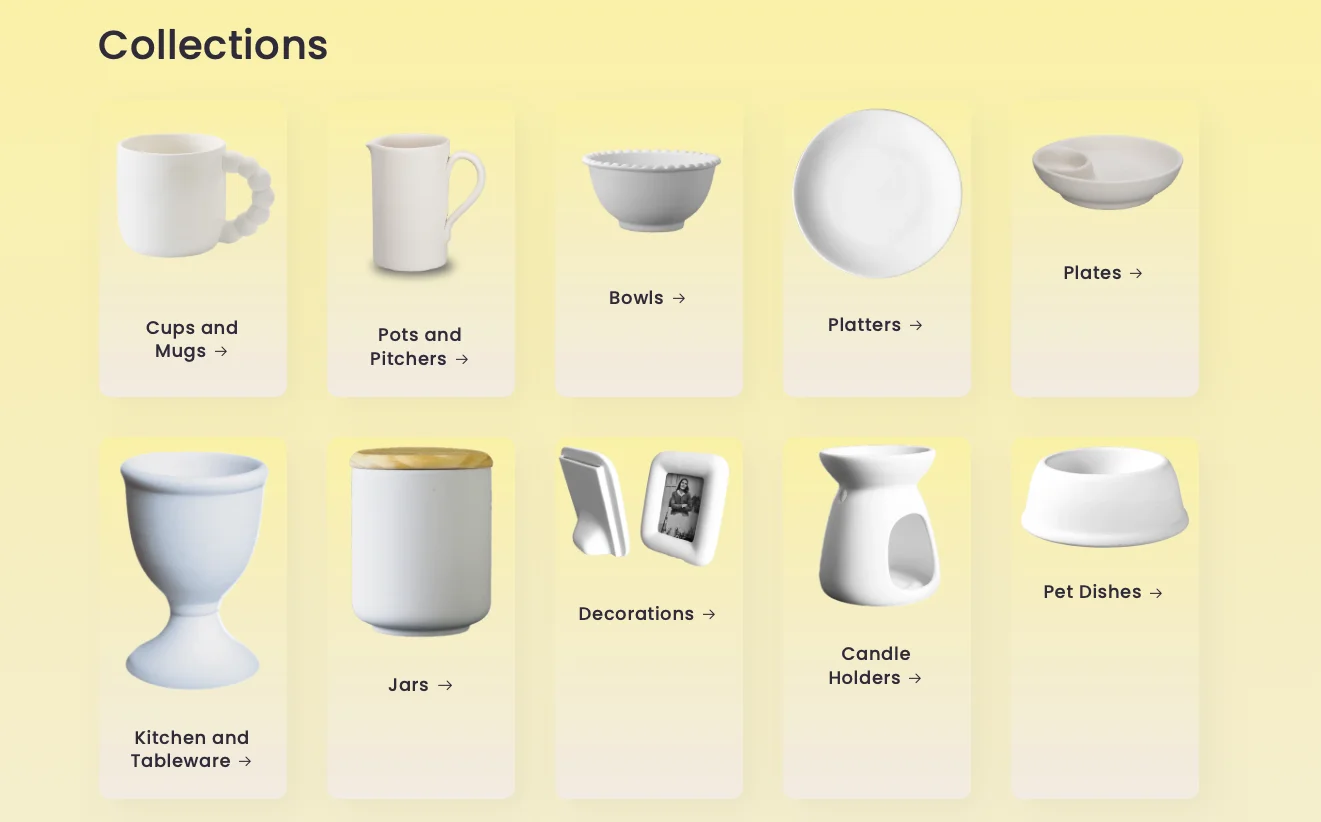
Ceramic collections with products customers may purchase in bulk.
Table of Contents
- The merchant question: 50 mugs, 30 in stock
- Why allowing overselling is not the whole solution
- How Smart Cart Inventory Allocation handles the split
- Make delivery expectations clear before checkout
- Frequently asked questions
- Keep the full order without hiding the wait
The merchant question: 50 mugs, 30 in stock
For a ceramics store, a large order might include mugs, bowls, plates, and other items bought in batches. Asking customers to calculate the available quantity for every product adds unnecessary work.
The merchant's question was straightforward:
If a customer wants 50 units but only 30 are available, how can they buy the 30 available units and pre-order the remaining 20 without creating two separate orders?
The goal is not to present all 50 units as immediately available. It is to let the customer order the full quantity while keeping the two availability states distinct.
Why allowing overselling is not the whole solution
Shopify's Continue selling when out of stock setting lets merchants accept purchases beyond available inventory. That can be useful when more stock is on the way.
However, permission to sell and a clear buying experience are different things. Simply accepting a quantity of 50 does not, by itself, explain that only 30 units are currently available.
Asking the customer to place separate orders is another workaround, but it shifts the stock calculation onto the buyer. That becomes especially inconvenient when a cart contains many different products.
How Smart Cart Inventory Allocation handles the split
K1 PreOrder's Smart Cart Inventory Allocation splits the requested quantity into regular-purchase and pre-order cart lines based on available inventory.
For the ceramics example, the customer requests 50 mugs, and the cart separates them into:
| Cart line | Quantity | Availability |
|---|---|---|
| Regular purchase | 30 mugs | In stock |
| Pre-order | 20 mugs | To be fulfilled later |
The customer can proceed through a single checkout without manually adding the same product twice to create the split.
The distinction matters: the available quantity stays a regular purchase, while only the shortfall becomes a pre-order. The customer does not have to treat the entire quantity as unavailable.
Make delivery expectations clear before checkout
A quantity split is not a shipping promise. Before accepting mixed in-stock and pre-order purchases, decide how your store will handle them and explain:
- Dispatch timing: whether available items will be sent first or held until the full order is ready.
- Expected availability: when the pre-order quantity is expected, or how customers will receive updates if the timing is uncertain.
- Shipping charges: whether separate shipments involve additional charges and how those charges are presented before purchase.
For example, if your policy is to send available stock first, say: “30 mugs are available for dispatch under our usual processing times. The remaining 20 are on pre-order and will be dispatched after restocking.”
Add a confirmed restock estimate where available. Do not suggest that splitting cart lines automatically creates separate shipments or determines shipping charges.
Frequently asked questions
Can a customer buy in-stock units and pre-order the rest together?
Yes. With K1 Smart Cart Inventory Allocation configured for the relevant products, the quantities can appear as separate regular-purchase and pre-order lines in the same cart.
Does the customer need to place two orders?
No. The allocation separates the cart lines so the customer can use one checkout.
Is “Continue selling when out of stock” the same as cart allocation?
No. The Shopify setting permits purchases beyond available stock. Cart allocation distinguishes the available quantity from the pre-order quantity.
Does the in-stock quantity have to ship immediately?
No. Dispatch timing depends on your fulfillment policy. Explain whether you ship available items first or wait for the full order.
Is this only useful for ceramics stores?
No. The same situation can arise whenever customers buy multiple units and available stock covers only part of their requested quantity.
Keep the full order without hiding the wait
The important question is not just “Can we accept all 50 mugs?” It is “Can the customer understand which 30 are available and which 20 they are ordering for later?”
A clear cart split, paired with an explicit fulfillment policy, helps you answer both.
Explore K1 PreOrder for mixed in-stock and pre-order purchases.
Related Resources
- Smart Cart Inventory Allocation: how automatic cart splitting works
- How to Set Up Pre-Order on Shopify