Overview
In K1 PreOrder, you can choose between two Payment Options for pre-orders:
- Add to Cart Replacement
- Native Purchase Options
Native Purchase Options are powered by Shopify’s built-in Purchase Options / Selling Plans framework.
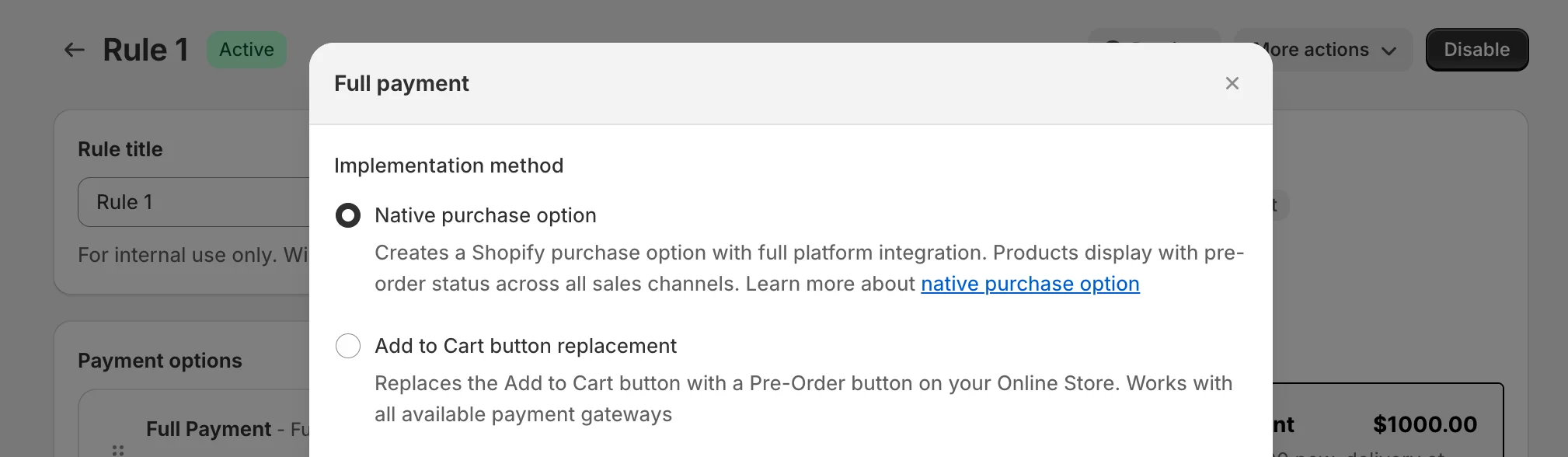
What changes in my store when I use Native Purchase Options?
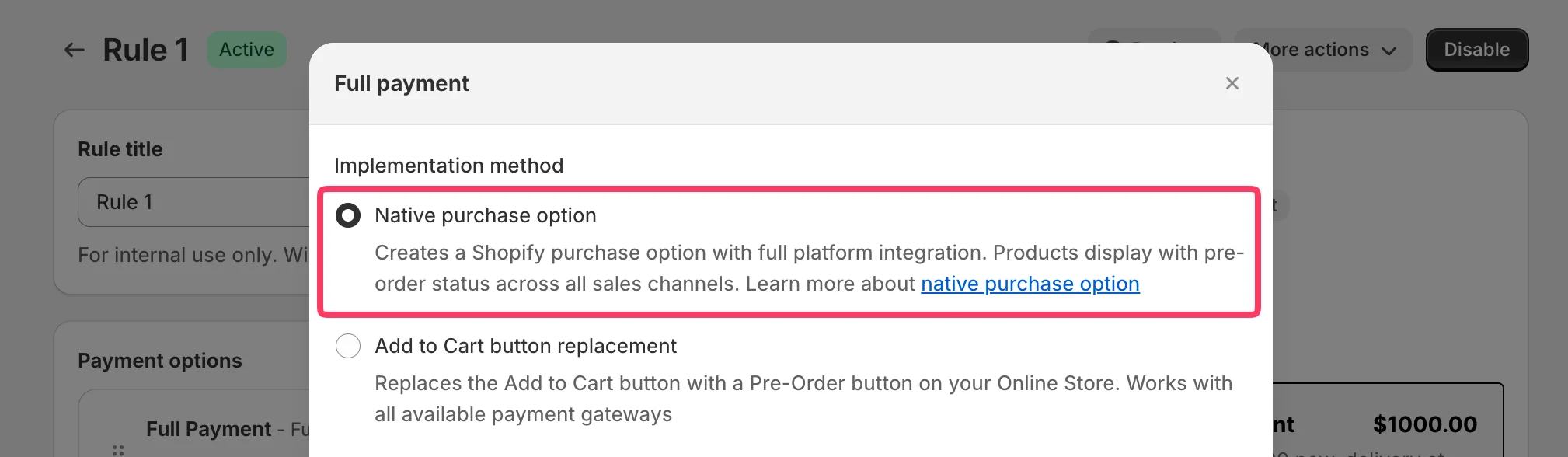
When Native Purchase Options are enabled for a rule, Shopify treats the pre-order line as a selling plan (purchase option) line.
That means:
- Checkout recognizes the item as a pre-order purchase option
- Shopify can support Partial Payment (for example, a deposit now and the remaining balance later)
- Shopify enforces a set of platform restrictions that apply to pre-order purchase options
Shopify limitations for pre-orders (important)
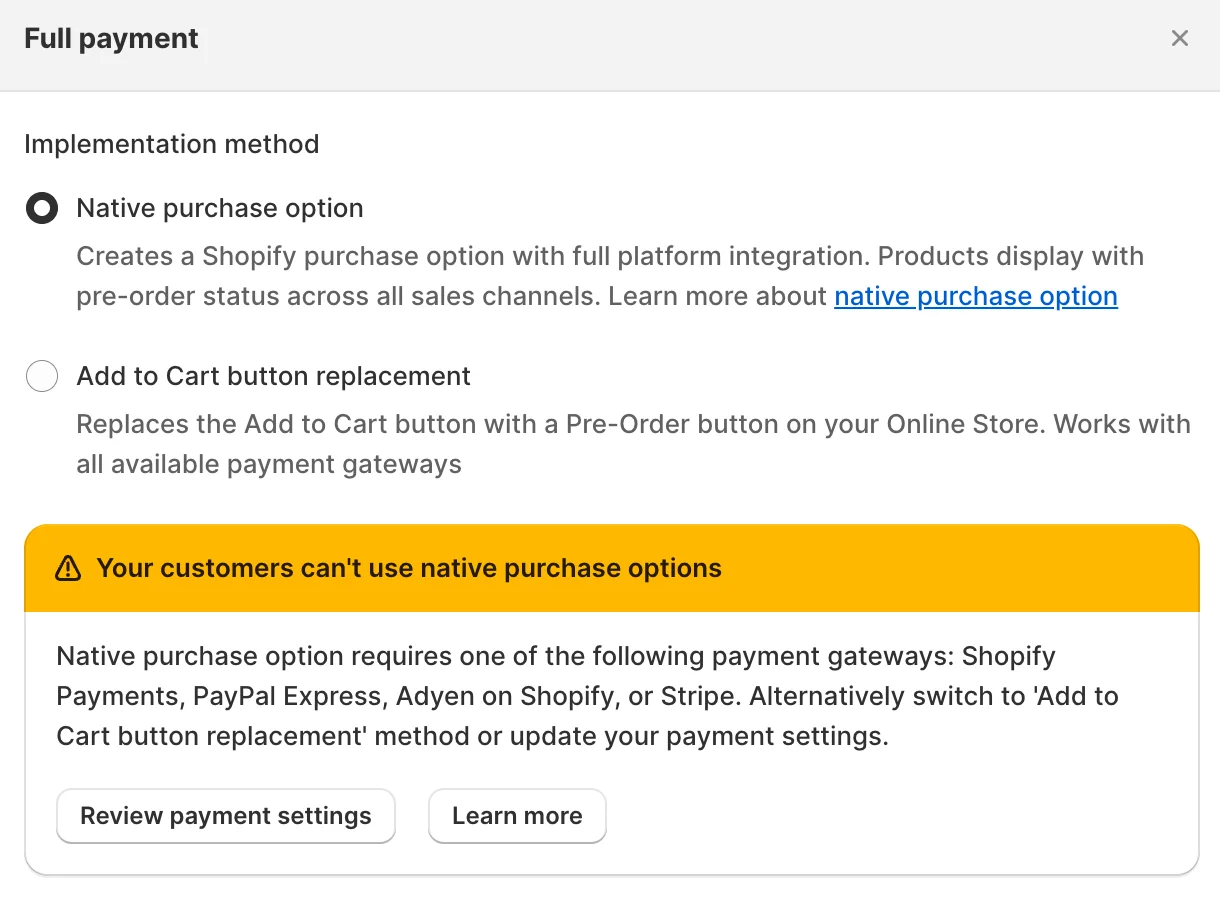
These are Shopify platform limitations that apply to pre-orders created using Shopify Purchase Options.
Payment methods (local payment methods aren’t supported)
Shopify states that customers can’t use local payment methods for pre-orders created via purchase options.
Examples of local payment methods (varies by country):
- iDEAL
- Bancontact
- Sofort
- Klarna
- Przelewy24 (P24)
- EPS
Supported payment gateways (required by Shopify)
To use pre-order purchase options, Shopify requires one of these payment gateways:
- Shopify Payments
- PayPal Express
- Adyen on Shopify
- Stripe
Where Native Purchase Options can’t be used (for pre-orders)
- Pre-orders created via purchase options can’t be used through Shopify POS.
- Pre-orders created via purchase options can’t be used on draft orders.
- Pre-orders created via purchase options can’t be used with B2B.
Discounts & checkout customization limitations
- Pre-orders via purchase options don’t support “Buy X get Y” discounts.
- Pre-orders via purchase options aren’t supported on stores with checkouts customized using
checkout.liquid(Shopify requires Checkout Extensibility). - Pre-orders via purchase options don’t support cart permalinks.
If I don’t want Native Purchase Options — what are my options?
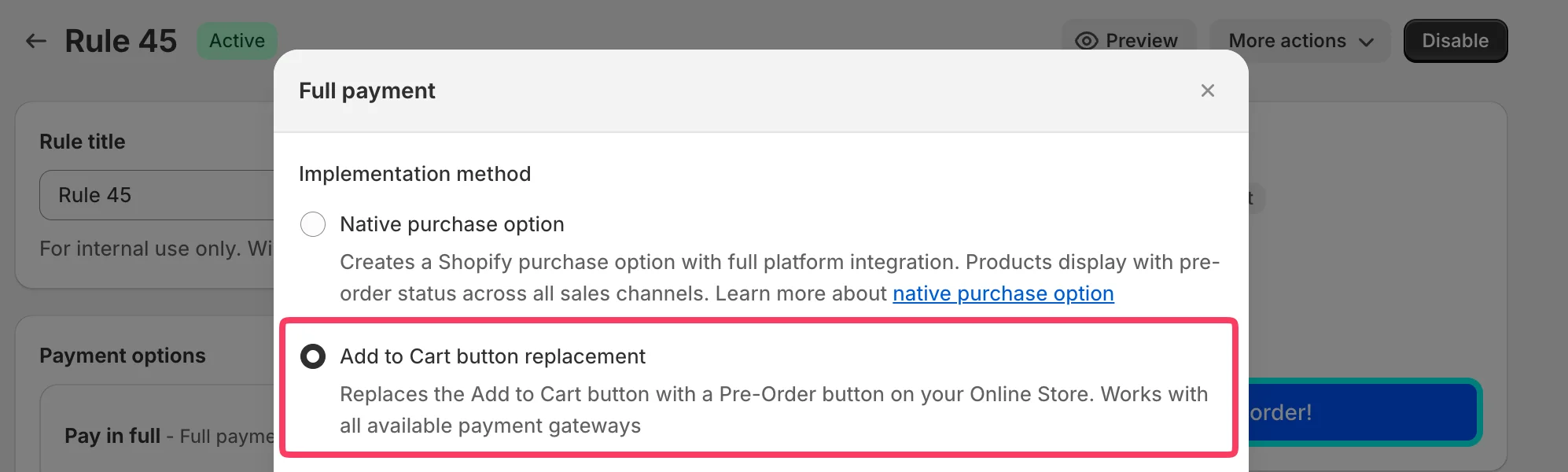
If you don’t want to rely on Shopify’s Purchase Options framework, K1 PreOrder offers one alternative.
Choose this when you need maximum checkout/payment gateway compatibility and want to avoid Shopify Purchase Options restrictions.
Option: Add to Cart Replacement
Instead of using Native Purchase Options, K1 PreOrder can configure the pre-order flow using an Add to Cart replacement purchase option.
This is typically chosen when:
- You need no hard restrictions on payment gateways
- You want to avoid Shopify purchase option limitations that impact your workflow (POS/draft/B2B)
Pre-orders must be full payment at checkout.