Your product page says a pre-order is expected in three weeks. An older FAQ still says two. A customer asks an AI assistant when the order will arrive - and the answer depends on which source it finds. Conflicting information can make shoppers hesitate before placing an order.
AI can help a store team draft content and answer common questions, but it needs reliable context. A knowledge base gives your team a practical way to organize approved information, keep it current, and decide what an assistant should do when it cannot find an answer.
In this guide, you will compare the information shoppers and AI tools see, resolve conflicts with the right owner, update the affected sources, and test the answer again. We use pre-orders as an example, but the same process works for shipping, returns, product details, and launches.
Shopify Knowledge Base is one place to publish approved store facts for AI channels. It is not a substitute for correcting the product page, FAQ, pre-order offer, or support content: each source and connected tool needs its own review.
What is an AI knowledge base?
An AI knowledge base is a set of sources an AI tool can consult when completing a task. Depending on the tool, these may be documents you upload, pages you connect, or information you provide manually.
It is not the same as a customer-facing FAQ. Your FAQ is one possible source; your knowledge base can also contain approved internal guidance. What matters is that the assistant can find the right information and that the people responsible for it can update or remove outdated details.
The goal is not to collect everything your business has ever written. Start with one useful task, a few reliable sources, and a clear way to review and correct answers.
Step 1: Choose one customer question to solve
Start with a question your team already answers regularly. For a store taking pre-orders, that might be:
When will my pre-order ship, and what happens if the date changes?
Define what a useful answer should include: the current estimate, whether it is an estimate or a confirmed date, what the customer should expect if it changes, and how to contact the team. Avoid asking the assistant to promise a delivery date that the store has not confirmed.
This does not require an automated chatbot on day one. Your team can test the workflow internally first and use the result as a draft for a human response.
Step 2: Gather and compare your sources
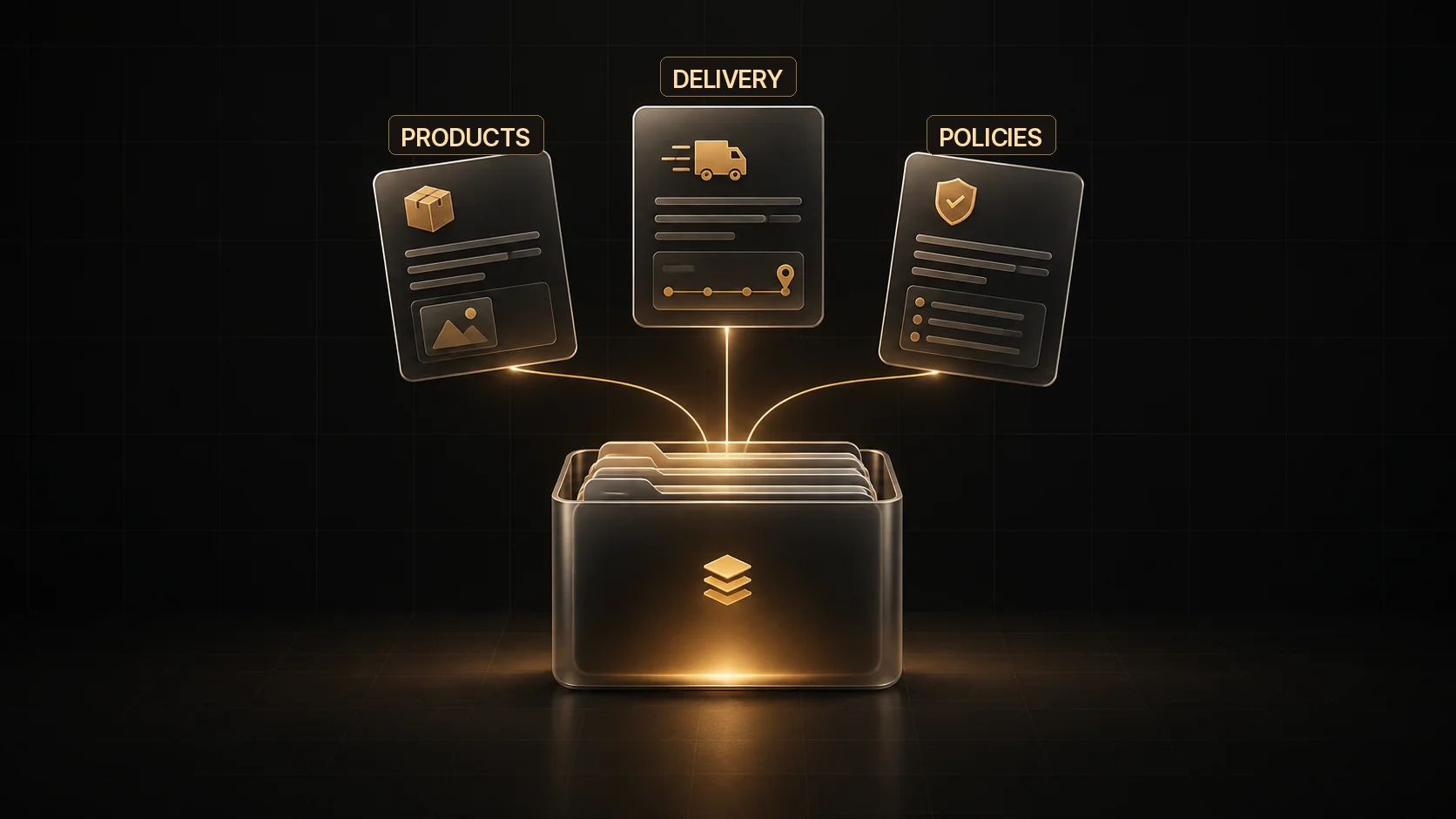
Pick an owner for each source and record where the current version lives. Compare the product page, pre-order offer, FAQ, shipping and return policies, knowledge-base facts, and support guidance for the same product and variant. Note the exact conflicting statements and where each appears. For a pre-order workflow, a starting set might look like this:
| Information | Example source | What to check |
|---|---|---|
| Product availability | Current product or variant information | Does it describe this specific item and variant? |
| Expected timing | Approved product-level availability or shipping estimate | Is the date current and clearly marked as an estimate? |
| Payment terms | Approved offer and store payment policy | What is due today and when is any balance due? |
| Changes and cancellations | Current store policy and support guidance | What can the team promise, and who handles exceptions? |
| Brand voice | A few approved replies | Are the examples helpful without becoming rigid scripts? |
An order's actual status can change separately from a general policy. Do not assume a static document can answer an individual order question. If the tool does not have authorized, current order data, route the question to a person who can check it.
Where to put your Shopify AI knowledge base
Choose the destination based on who needs the information. A source document is not automatically connected to every assistant: check what each tool can read and how updates reach it.
Shopify Knowledge Base: public store facts for AI channels
In Shopify admin, open Sales channels → Agentic → Sources → Knowledge Base. Review the existing fields and their sources, correct shipping or return details, and add a fact under Additional facts when needed. Publish the relevant facts and save. Shopify says published facts are available publicly through Storefront MCP, so do not put private customer or internal-only information there. Storefront scan suggestions need review; check that the public page and published fact agree. Shopify's setup guide explains sources and publishing.
Gorgias AI Agent: answers in customer support
If you use Gorgias AI Agent with Shopify, open AI Agent → Knowledge → Create content. Add guidance, a public URL, a help-center article, or an approved document, then enable the content for the agent. Use Playground to test customer questions and check the response before going live. Gorgias notes that images in uploaded documents and embedded media on synced URLs aren't extracted, so put essential details in text. See Gorgias's instructions.
K1 PreOrder: configure the offer, then keep its details aligned
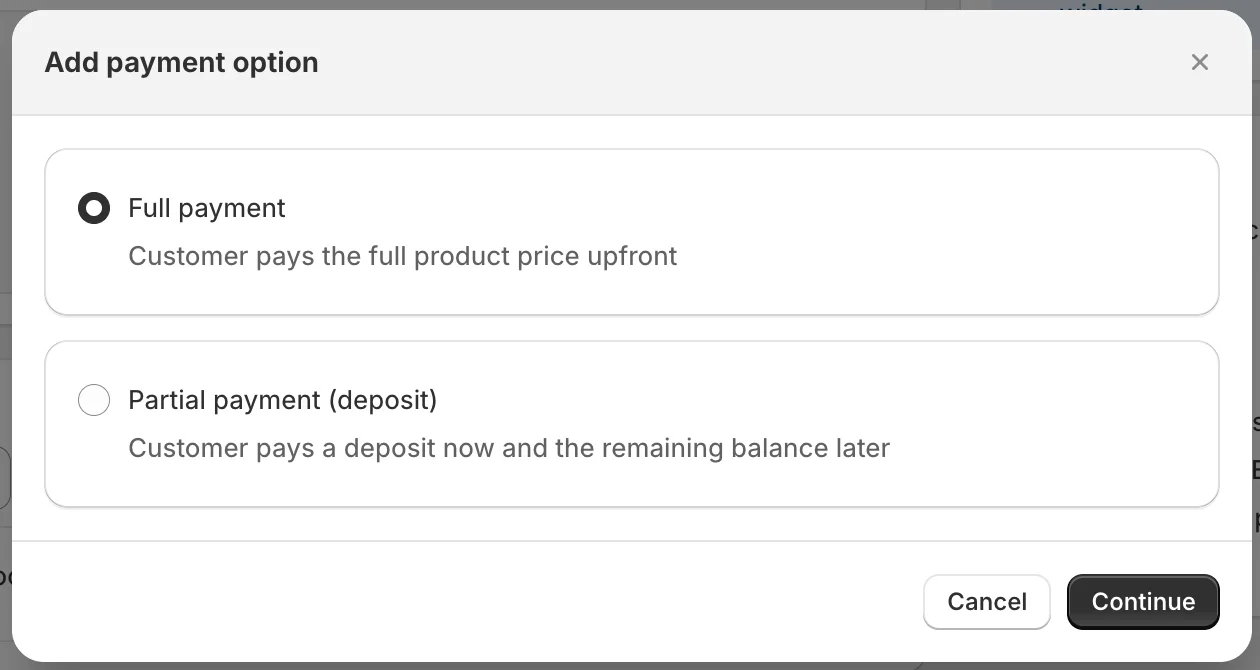
Use K1 PreOrder Now & Deposit to configure pre-order rules and payment options. Review the applicable offer, payment terms, and customer-facing pre-order message, then keep your knowledge-base facts and support guidance consistent with them. K1's Shopify Sidekick integration can help merchants ask about K1 rules and settings; verify what your own setup exposes. K1's offer configuration is not automatically a complete customer-support knowledge base.
An approved document: a lightweight starting point
If you are not ready for a dedicated tool, maintain a shared document with approved questions and answers, owners, source links, and review dates. Give an assistant only the material it is authorized to use, either by uploading it or connecting a supported source. A document alone does not make answers available to customers: you still need a tool and a tested workflow to use it.
Step 3: Make the information easy to maintain
For each important answer, record:
- The approved answer or policy.
- The original source and its owner.
- When it was last checked and when it should be reviewed again.
- Which products, variants, countries, or situations it applies to.
- What to do when the information is missing or uncertain.
Make an AI-readable text version. Write each important answer in clear, direct text with a descriptive heading, product or variant scope, timing, and exceptions. Do not make a delivery date or payment condition available only in an image. Check your chosen tool's supported formats and refresh behavior.
Fix a conflict before relying on an answer
- Identify the mismatch. Record the product or variant, the conflicting statements, and the locations where they appear.
- Confirm the correct information. Ask the owner of the offer, policy, or supplier relationship to verify the current facts. Do not assume the newest-looking page is correct. If the facts are uncertain, flag the answer for a team member instead of guessing.
- Update every affected source. Correct the approved source, product page, FAQ, and relevant support or knowledge-base content. Review and publish the relevant Shopify Knowledge Base fact if it needs changing; check how other connected tools refresh their sources. Remove or clearly archive obsolete copies.
- Verify and retest. Reopen the customer-facing pages and published facts, then ask the same question in each relevant assistant. Check that its answer uses the corrected information and treats an estimate as an estimate.
For example, if the product page says three weeks and the FAQ says two, first confirm the current estimate with the responsible owner. If three weeks is confirmed, update the FAQ and any affected pre-order message, Shopify Knowledge Base fact, and support guidance. Then check the live pages and retest the answer. If the estimate cannot be confirmed, do not present either number as fact; route the question to the team.
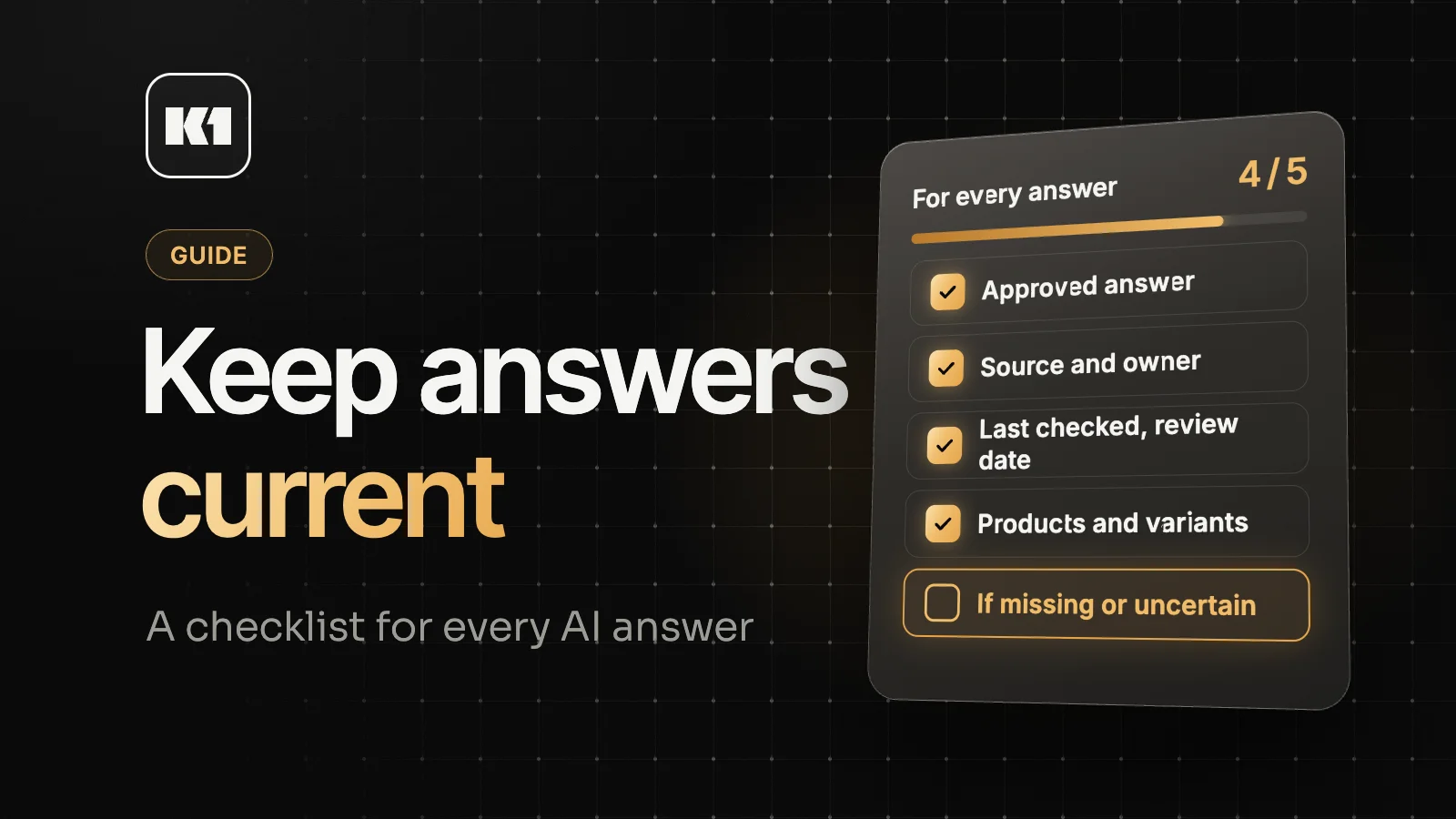
Before using an AI answer, check its source and details, label estimates, and escalate uncertain cases.
Step 4: Test with real questions before using answers publicly
Collect a small set of anonymized questions from your team and test the assistant against them. Include straightforward questions and cases where the correct answer is uncertain.
| Test question | A good response should do this |
|---|---|
| When will the pre-order ship? | Use the current estimate, identify the relevant product, and avoid presenting an estimate as a guarantee. |
| How much will I pay later? | Explain only the terms verified for the relevant offer; escalate if order-specific details are unavailable. |
| Can I cancel my order? | Refer to the current policy and offer a path to the support team for the specific request. |
| What if the date changes? | Explain the store's approved update process without inventing a new date. |
Have a person review each response for accuracy, missing context, tone, and escalation. If an answer is wrong, fix the underlying source or access issue as well as the response. Retest after a policy, product, or supplier update.
Two prompts to audit your store information
Use these prompts in ChatGPT or Claude with the relevant approved text or accessible URLs, or try them in Shopify Sidekick for an internal review of store data available under your staff permissions. Sidekick is a merchant assistant, not a customer-support agent; it may not have access to every source. Provide missing material explicitly, verify its findings, and don't include sensitive customer details. The example below shows a prompt being used in Sidekick; the prompts that follow are more specific.
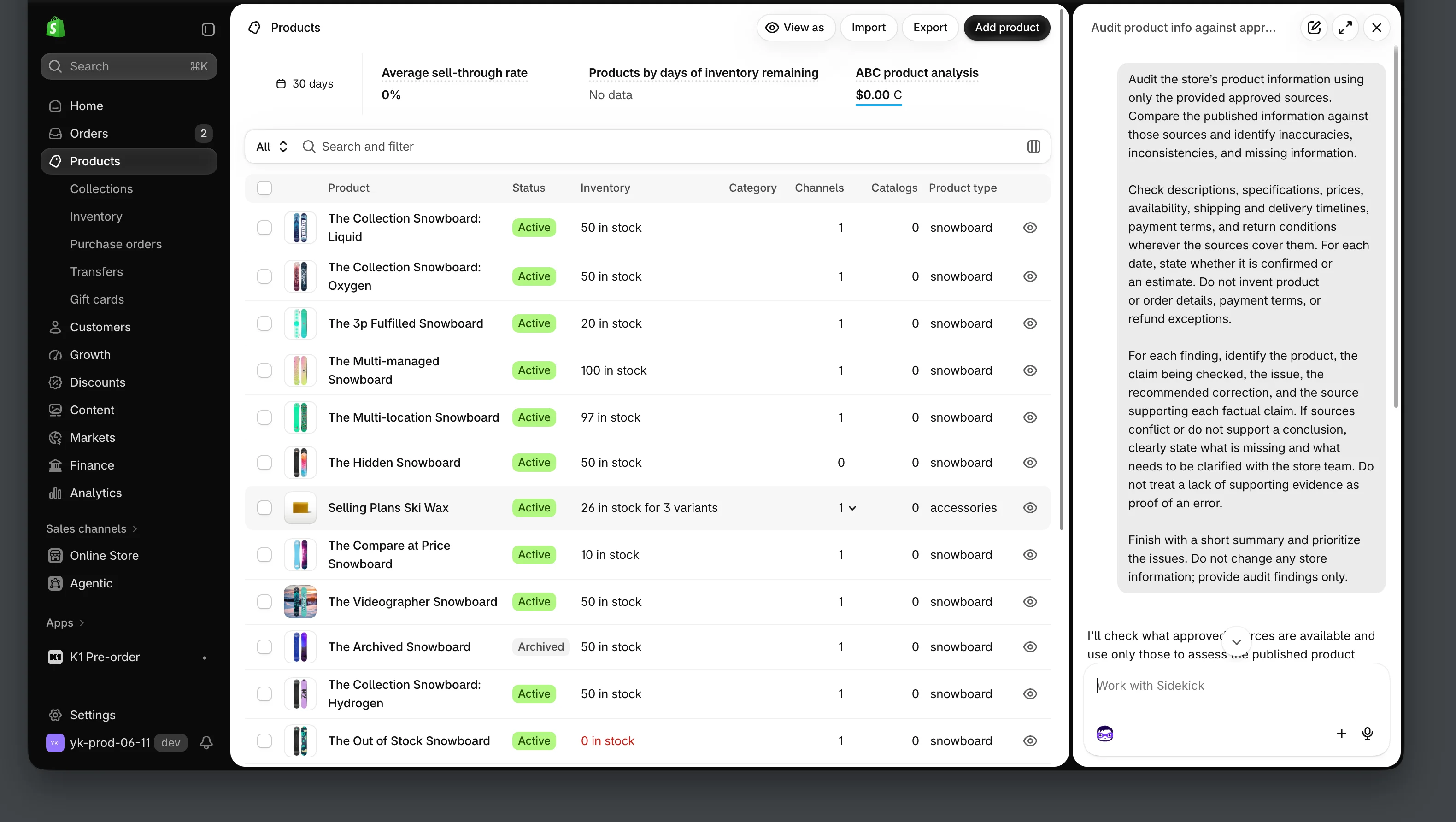
An assistant's references still need checking. A confident answer or a source link is not proof that the underlying information is current or applicable.
How this supports the pre-order experience
A pre-order promise appears in more than one place: on the product page, in a confirmation, and in later customer conversations. Keeping the underlying information consistent helps your team explain the same offer across those touchpoints.
Your pre-order app and knowledge base have different jobs. Configure the offer in K1, then review the product page, FAQ, and support guidance against those settings. When an estimate or payment option changes, update the approved sources and test the answers again. Verify what each AI tool can access rather than assuming it has live order information.
Frequently asked questions
Do I need a dedicated AI tool to start?
No. You can first organize approved information in existing documents and test draft answers internally. A dedicated tool may be useful later, depending on your workflow, security needs, and budget.
Should I add every support conversation to the knowledge base?
Not automatically. Select useful examples, remove unnecessary customer information, and check that the guidance is still correct. A conversation can reveal a gap without becoming an approved policy itself.
How often should I review the sources?
Review them whenever an offer, policy, or expected date changes, and set a regular check appropriate to your store. Fast-changing pre-order estimates may need closer attention than stable brand guidelines.
Can AI answer order-specific questions?
Only if the chosen tool has authorized access to the relevant current data and your store has tested the workflow. Otherwise, have the assistant hand the question to a team member who can verify the order.
Start with one reliable answer
Choose one recurring customer question, compare the sources that answer it, and ask an owner to resolve any conflict. Update the affected pages and knowledge-base content, then test the answer again. Once that workflow is reliable, repeat it for the next question - without sacrificing privacy or human review.
For the pre-order side of your workflow, see our Shopify pre-order setup guide and guide to deposits and customer communication.