By Hylke Reitsma, Forthcast
A pre-order commits you to ship an item at a later date. Before accepting that commitment, work out what you already owe customers, what further demand you expect, and which supplier deliveries will be available before the shipping date you advertise.
The basic calculation is:
Units to purchase = existing unfulfilled pre-orders + additional forecast demand + safety buffer − usable stock on hand − confirmed incoming stock.
Use the same product variant and planning period for every number. Count each commitment once, and only subtract incoming stock that can arrive and be ready to ship within that period. If the result is zero or negative, the calculation does not call for another purchase.
That gives you a purchasing requirement. Setting a pre-order limit takes a second check: how much of that supply is confirmed, and how much is still available after existing commitments and your buffer?
Start with a shipping date you can support
Choose the date by which the goods must be ready for customer orders. Work backwards through warehouse receiving, any inspection or preparation, transport and supplier production or picking time.
Keep the supplier's dispatch date separate from your customer shipping date. Goods leaving a supplier on the 10th might still need transport, customs clearance where applicable, and warehouse processing before you can fulfill an order.
Record each incoming shipment with its variant, quantity, expected arrival and expected ready-to-ship date. Ask the supplier to confirm quantities and dates before using that shipment to support more pre-orders. A quotation or an unsent purchase-order draft is not confirmed supply.
If two shipments arrive at different times, give them separate allocations. Stock arriving after an earlier batch's promised shipping date cannot cover that batch, even if your monthly total looks sufficient.
Keep customer commitments separate from additional demand
Existing pre-orders are orders you have already accepted. Forecast demand estimates what customers may order next. You need both, but adding them carelessly can count the same demand twice.
For example, if a forecast of 130 units already includes 80 units represented by existing pre-orders, the additional demand is 50 units. Your starting demand is 80 + 50, not 80 + 130.
Check what the forecast actually represents before subtracting anything. A forecast for future orders may already exclude existing commitments. In that case, subtracting those commitments again would understate demand. This is a reconciliation step, not a rule to subtract every pre-order from every forecast.
Use a simple planning sheet with separate columns for:
| Input | What to include |
|---|---|
| Existing pre-orders | Unfulfilled units already promised for this shipping window |
| Additional forecast demand | Expected further orders in the same window, excluding those commitments |
| Safety buffer | Units deliberately held back for uncertainty |
| Usable stock on hand | Physical units suitable for this plan, before deducting the pre-order commitments listed separately |
| Confirmed incoming stock | Units expected to be received and ready in time, after excluding allocations to unrelated orders |
Keep those definitions consistent. If your stock figure already excludes units allocated to the pre-orders in the first row, do not subtract that allocation a second time. Either use physical stock suitable for this plan and list those commitments separately, or reconcile the net stock figure back to that basis.
Do not assume Shopify's Available quantity uses the same basis as this worksheet. Check whether commitments have already been deducted before using it as the stock-on-hand input.
Work at variant level. Twenty medium shirts cannot fulfill twenty large-shirt pre-orders. Exclude damaged stock, units reserved for unrelated orders, and stock that cannot reach the required fulfillment location in time. Apply the same exclusions to incoming shipments. Do not deduct any of those exclusions again elsewhere in the calculation.
Worked example: an 80-unit replenishment order
Consider a hypothetical Shopify merchant planning one product variant for a single shipping window. All quantities below are illustrative, not results from a merchant account.
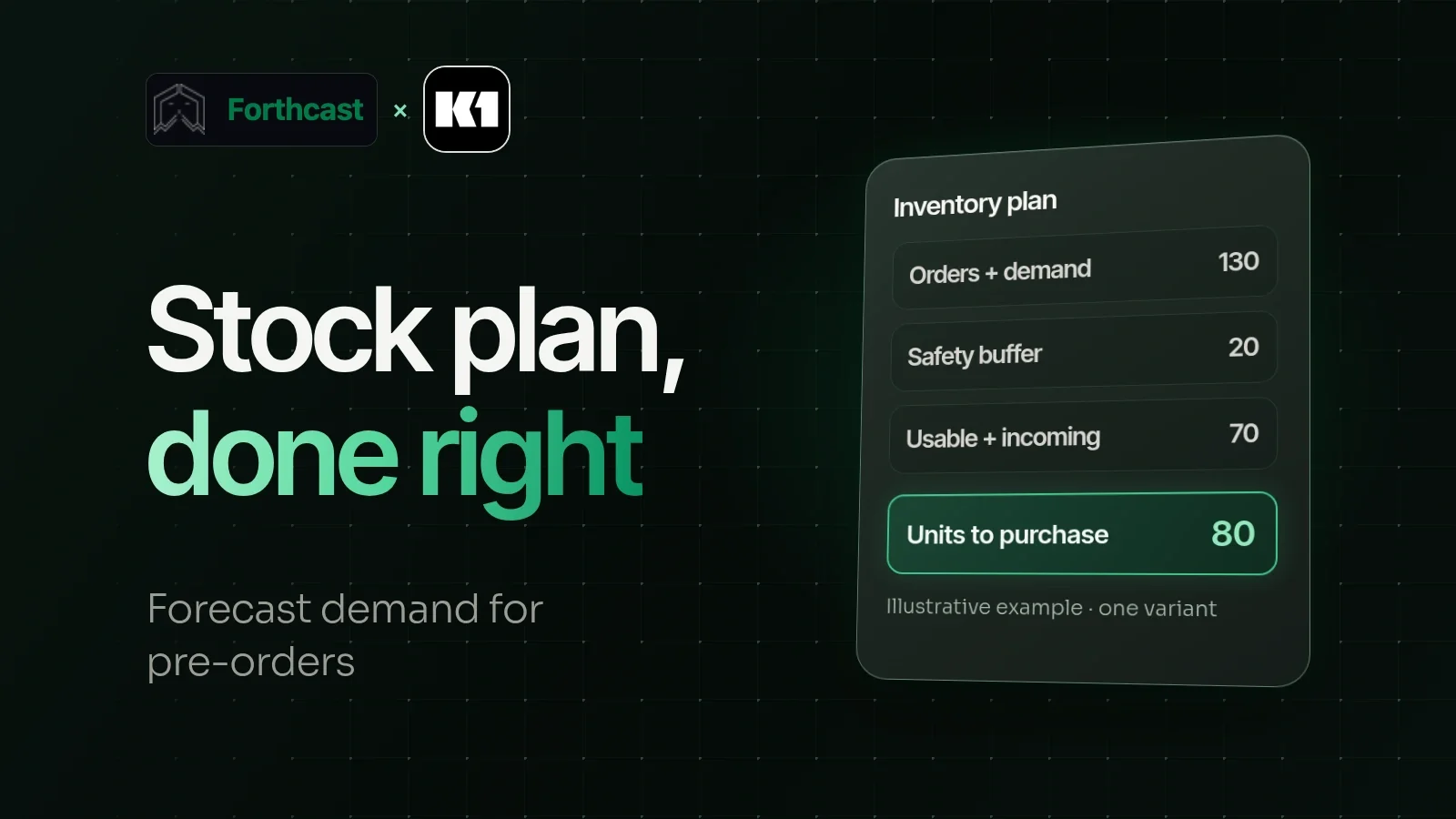
The merchant has accepted 80 pre-orders. After reconciling those commitments with the forecast, they expect another 50 units of demand before the planning window ends. They choose a 20-unit buffer, have 10 usable units on hand, and have a confirmed incoming shipment of 60 units that will be ready in time.
| Planning input | Units | Treatment |
|---|---|---|
| Existing unfulfilled pre-orders | 80 | Add |
| Additional forecast demand | 50 | Add |
| Safety buffer | 20 | Add |
| Usable stock on hand | 10 | Subtract |
| Confirmed incoming stock | 60 | Subtract |
| Additional units to purchase | 80 | 80 + 50 + 20 − 10 − 60 |
The plan requires 150 units in total. The merchant already has 70 units on hand or confirmed incoming, leaving 80 units to purchase.
The 20-unit buffer is an assumption for this example, not a recommended percentage for every store. Choose a buffer that reflects your demand uncertainty, supplier reliability and ability to recover from a shortage.
Review supplier minimums and pack sizes before placing the order. If the supplier sells only in cases of 24, an 80-unit requirement would mean four cases, or 96 units. That adds 16 units to the plan and changes the cash and storage requirements. It does not automatically justify accepting 16 more pre-orders.
Use Forthcast to review the replenishment decision
Forthcast inventory forecasting helps Shopify merchants review demand forecasts, reorder alerts and draft purchase orders. Use it to examine the replenishment requirement, then reconcile the result with the pre-orders and supplier confirmations in your planning sheet.
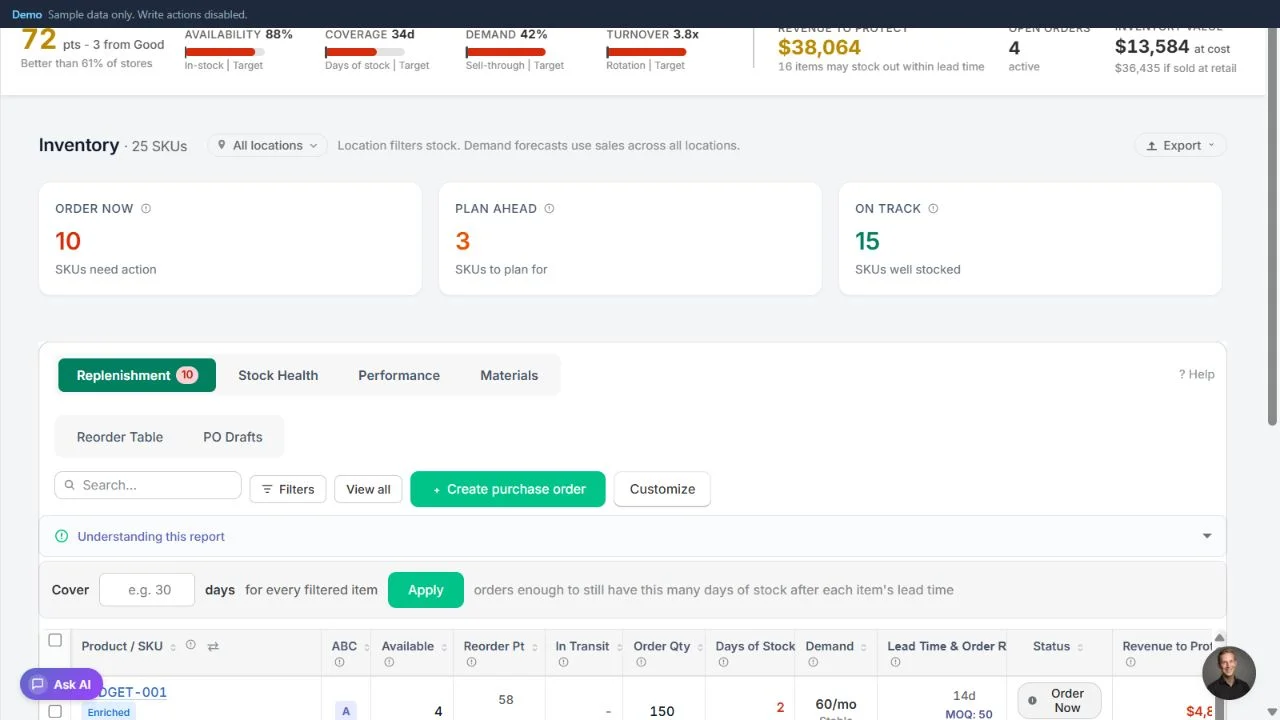
Forthcast inventory overview, showing stock availability, coverage and replenishment priorities (demo data).
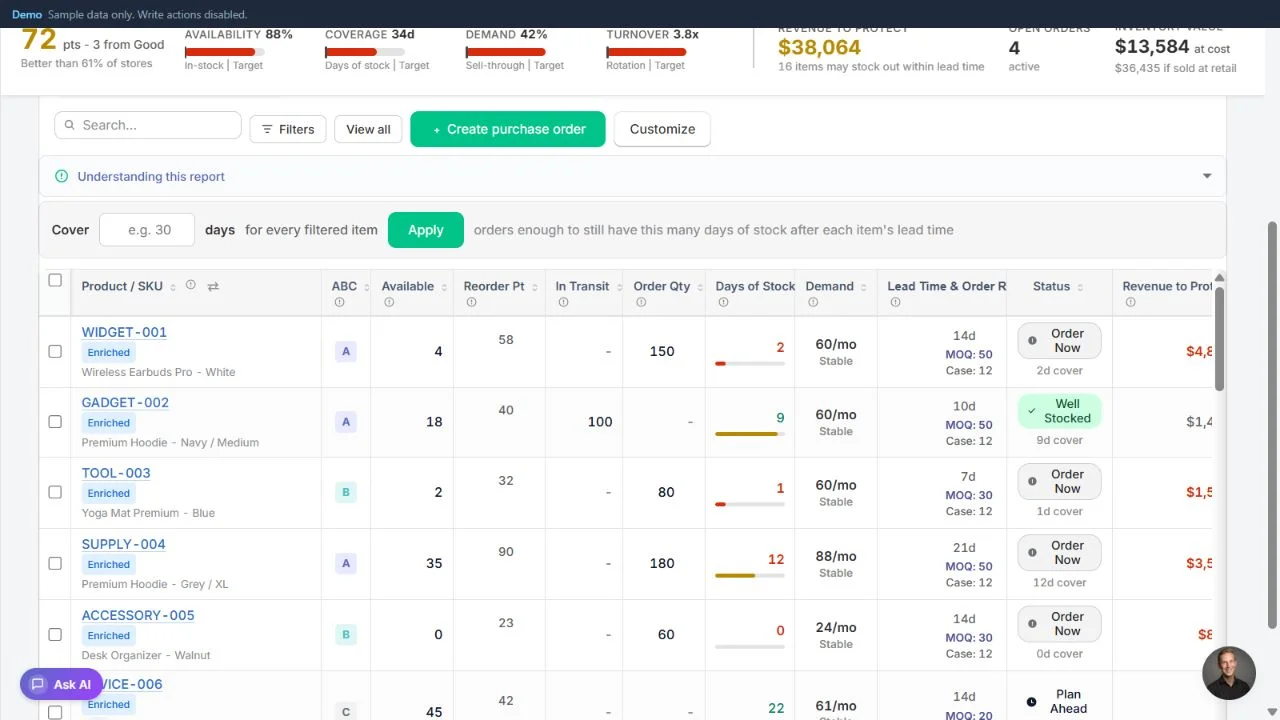
Forthcast reorder table, showing available stock, reorder points, in-transit quantities, days of stock, demand and lead time by SKU (demo data).
The screenshots show separate sample data, not the worked example above. The table shows days of stock, not a stockout date; the location filter changes the stock shown, while demand forecasts and reorder points are store-wide.
Start with the demand forecast and the period you need to cover. Compare it with accepted pre-orders, upcoming promotions and any information the sales history cannot yet represent. For a new product with little history, make your assumptions explicit and consider how the plan changes if demand is lower or higher.
Next, review reorder alerts and the stock position. Check the supplier lead time and quantities already incoming before deciding what to purchase. Forthcast's forecasts and reorder points are store-wide, so separately check that the stock will reach the location fulfilling these orders.
Finally, review the draft purchase order. Confirm the supplier, variant, quantity and delivery requirements before proceeding. Forthcast provides a draft for merchant review; the merchant still needs to arrange the order and obtain the supplier's confirmation.
This workflow does not assume an automatic connection between Forthcast and your pre-order app. Keep the customer commitments and supplier confirmations reconciled as you move between planning and selling.
Set the pre-order limit from confirmed supply
The 80-unit purchase requirement is not permission to accept another 80 pre-orders. Until that order is confirmed for the required date, it is still a plan.
For a particular shipping window, calculate:
Additional pre-order capacity = usable stock + confirmed incoming stock − existing commitments − protected buffer − other demand you have reserved capacity for.
Use the same stock basis as the purchasing calculation. The last term covers future demand assigned to other channels that has not already been deducted from your usable or incoming stock. Do not subtract the forecast additional pre-order demand here: this calculation determines how much of that demand you can accept. Count each allocation only once.
If the result is zero or negative, accept no additional pre-orders for that window. If it is negative, check whether the shortfall affects accepted orders, the protected buffer, or other reserved capacity, and resolve it before expanding the offer.
In the worked example, before the new purchase is confirmed, the merchant has only 10 + 60 = 70 units to cover 80 accepted pre-orders. That is already a 10-unit shortfall before allowing for a buffer. They should resolve that shortage before increasing the limit.
Suppose the supplier then confirms all 80 new units will be received and ready before the promised shipping date. Total supply becomes 150 units. After the 80 existing commitments and the 20-unit buffer, 50 units remain.
Those 50 units can support the forecast additional demand. If the merchant intends to sell all of them as pre-orders, the additional capacity is 50 units. If they reserve 20 for another sales channel, only 30 remain for additional pre-orders. Do not allocate the same 50 units to both groups.
Distinguish additional capacity from the total accepted quantity. Another 50 units would bring accepted pre-orders from 80 to 130. Before entering a limit in an app, check whether its field means total configured pre-order quantity, remaining units or another measure, and test how existing orders affect it.
In K1 PreOrder Now & Deposit, pre-order limits, recorded quantities and remaining quantities are managed for covered variants. Review these values for each variant and set the limit so that the remaining quantity matches the additional capacity in your inventory plan. Do not enter 50 as the configured limit without checking how earlier orders are represented. Keep each variant’s supply and commitments separate; stock is not interchangeable between sizes or colors.
Before changing the configured limit, compare the app’s recorded and remaining quantities with the inventory plan. In this example, once the supplier confirms the new stock, the plan supports 50 additional units after existing commitments and the buffer; make sure the app’s remaining quantity does not exceed that capacity. Earlier commitments remain part of the inventory plan even if they are not reflected in the app’s current quantity. Recheck the remaining quantity as orders are placed and after inventory is received.
If the supplier confirms only 40 of the requested 80 units in time, total supply is 110. After existing commitments and the buffer, only 10 units remain for additional orders. Update the limit to match the confirmed plan, not the original purchasing request.
Make the offer match the inventory plan
Once you have confirmed quantities and dates, configure the customer offer in your pre-order app. K1 PreOrder Now & Deposit supports pre-orders and partial-payment options. The setup should make clear which variant is on pre-order, what the customer pays now, any remaining balance and its collection schedule, and when you expect to ship.
Shopify's pre-order guidance explains that payment can be collected in full, in part, or later, depending on the options offered. Payment timing does not change how many physical units you owe: a one-unit order with a deposit still commits one unit of stock.
Partial and deferred payments depend on the store's payment gateway and purchase-option setup. Test the supported payment path before offering a deposit or later charge. With K1, automatic balance collection follows a configured date or a set number of days after the order; do not describe it as triggered by shipping.
Use consistent shipping information on the product page, in the checkout experience where supported, and in customer communications. Distinguish an expected shipping date from an expected delivery date.
Before opening the offer, place test orders and check the quantity limit, payment details and customer messages. Test cancellations too. A cancelled unit should only become available to sell again when the cancellation is reflected in your records and the underlying stock is still available for that shipping window. A released quantity counter does not itself confirm that supply is available.
Review the plan while pre-orders are open
Reconcile accepted units against confirmed supply whenever the plan changes. A supplier delay, partial shipment, cancelled order or demand spike can change the quantity you can safely promise.
If a shipment slips, recalculate each affected shipping window. Pause or reduce further pre-orders where necessary, and update affected customers with the revised information. Buying enough units eventually does not fix a promise to ship them earlier.
When goods arrive, check received quantities and their condition before treating them as usable stock. Allocate units to existing commitments before releasing additional stock for sale, and record any shortage so it feeds the next planning decision.
After receiving inventory, confirm the units are usable and reconcile the recorded pre-orders, configured limit and remaining quantity against the updated supply. Do not assume that restocking alone changes how many additional units you can safely promise.
Pre-order inventory checklist
- Choose a shipping window for each variant and work backwards through supplier and warehouse lead times.
- Count existing unfulfilled pre-orders once, using a stock figure that has not already deducted the same commitments.
- Separate additional forecast demand from accepted orders.
- Exclude damaged, unavailable, late-arriving or otherwise committed stock without deducting the same exclusions twice.
- Choose and record the buffer you intend to protect.
- Review the purchase requirement, pack sizes and supplier minimums.
- Obtain confirmed quantities and ready-to-ship dates before expanding the pre-order limit.
- Allocate remaining supply across channels without promising the same units twice.
- Review the configured limit, recorded quantity and remaining capacity for each covered variant; reconcile them with available and confirmed supply.
- Recheck remaining capacity as orders are placed and after inventory is received, canceled or changed.
- Test payment compatibility and confirm the amount due today, any remaining balance, and its collection schedule.
- Revisit the plan when demand, supplier dates or received quantities change.
Connect the inventory plan to the customer promise
Start with the variant you expect to run out of next. Review its demand and replenishment requirement in Forthcast, reconcile the existing orders, and confirm the supplier's delivery before setting the next pre-order limit in K1.
For the storefront setup, our guide to setting up pre-orders on Shopify explains the next steps. If you are evaluating a deposit, see how to communicate deposit and full-payment terms. Keep the quantity you can promise, the payment schedule, and the expected shipping date aligned as the plan changes.