Overview
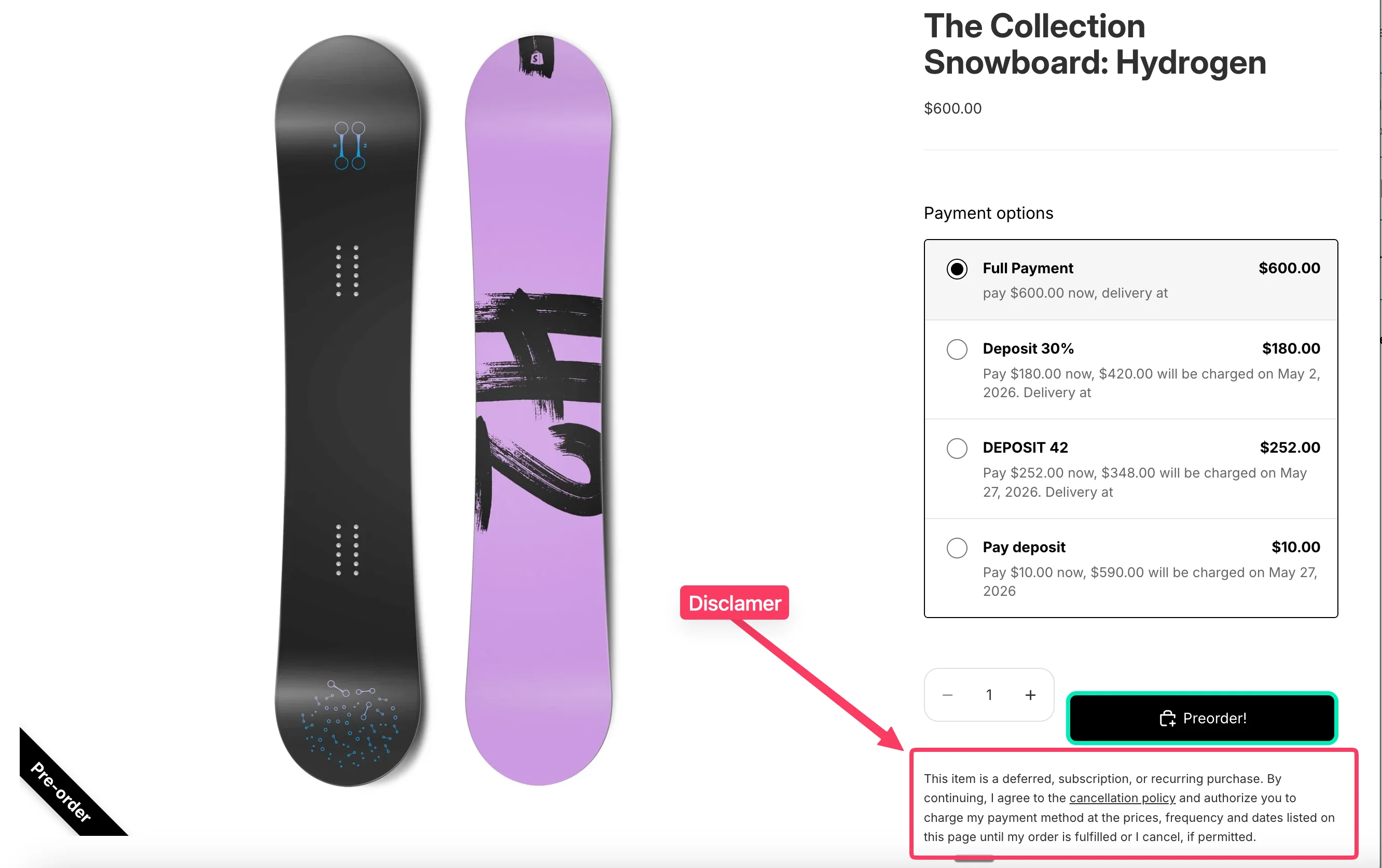
When a customer's cart contains a pre-order item (a deferred, subscription, or recurring purchase), Shopify automatically displays a disclaimer message on the cart page. By default it reads:
This text is controlled by Shopify's theme content (not by K1 Pre-Order), so it can be edited directly in your store's admin. You can replace it with your own wording or hide it entirely.
Why This Disclaimer Exists
Shopify adds this message to help merchants stay compliant with consumer-protection and payment regulations that apply to deferred, subscription, and recurring purchases — including pre-orders with deposits or delayed fulfillment. Depending on where you sell, these may include:
- US: the Restore Online Shoppers' Confidence Act (ROSCA) and FTC guidance on negative-option and deferred billing, plus state-level auto-renewal laws (for example California's ARL).
- EU / UK: the Consumer Rights Directive and the UK Consumer Contracts Regulations, which require clear pre-contractual information about price, payment timing, cancellation rights, and the duration of the contract.
- Card network and payment-provider rules: Visa, Mastercard, and Shopify Payments require merchants to obtain clear buyer consent before charging a stored payment method for a deferred or recurring transaction.
The disclaimer's role is to document that the shopper has been informed about what they are paying for, when they will be charged, and how they can cancel — and that they agreed to it at checkout. This is what turns the cart action into valid, auditable consent.
Step 1. Open Theme Content
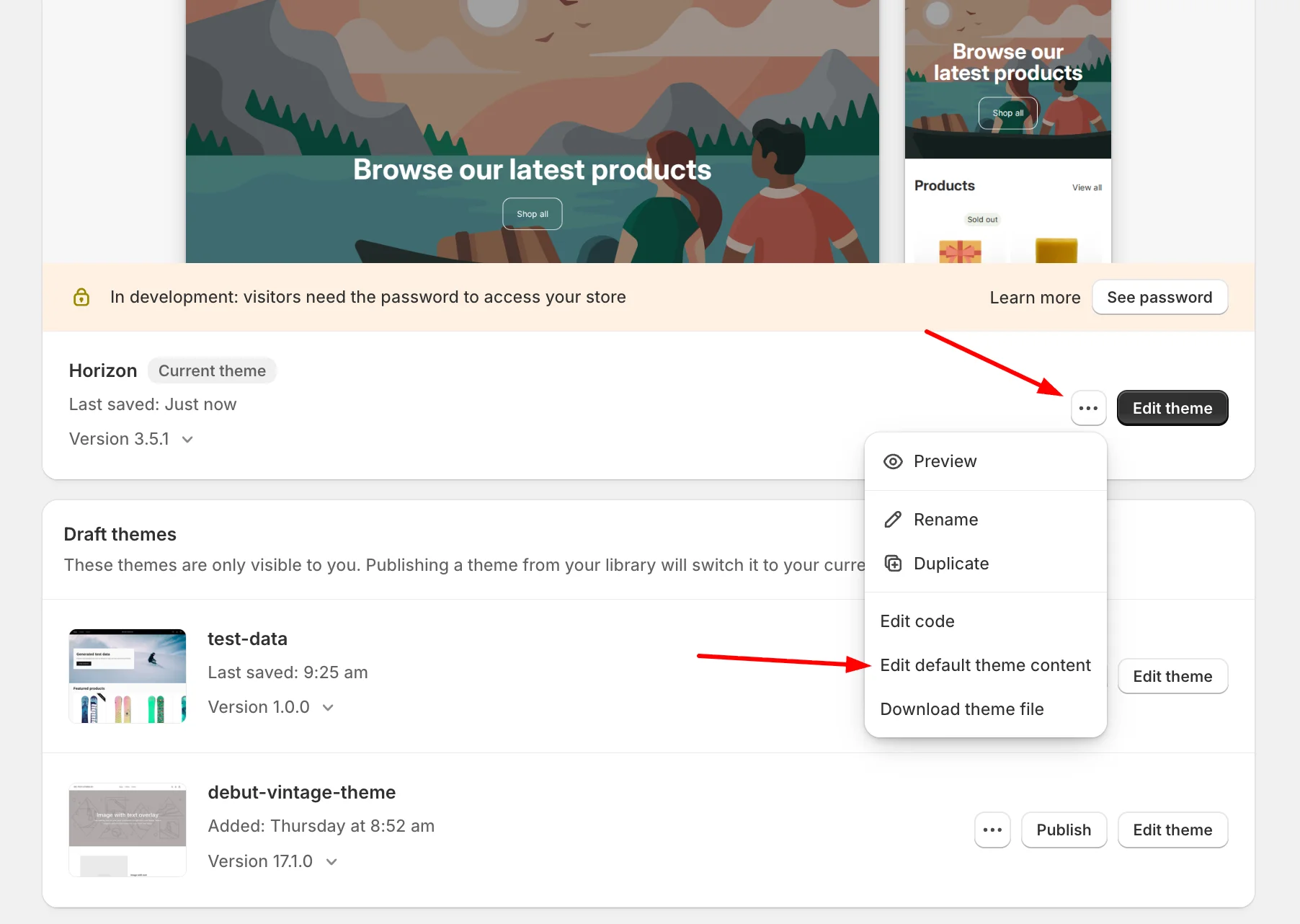
- In your Shopify admin, go to Online Store → Themes.
- In the left sidebar open the ⋯ menu on your live theme and choose Edit default theme content).
Step 2. Find the Disclaimer String
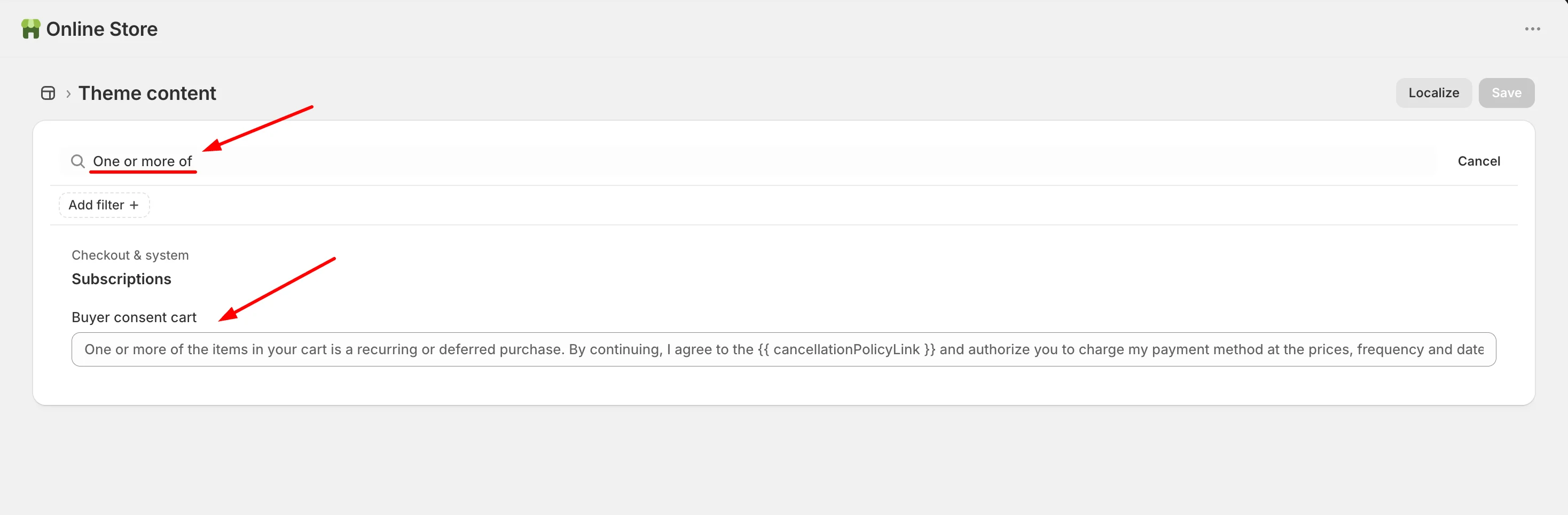
- In the search field at the top of the Theme content page, type:
One or more of
Step 3. Edit or Hide the Text
You have two options depending on what you want to achieve:
Option A — Replace the text
- Click inside the Buyer consent cart field.
- Enter your custom wording. You can keep the existing Liquid variables (for example
cancellationPolicyLink) so the cancellation policy link continues to work. - Click Save in the top-right corner.
Option B — Hide the text completely
- Click inside the Buyer consent cart field.
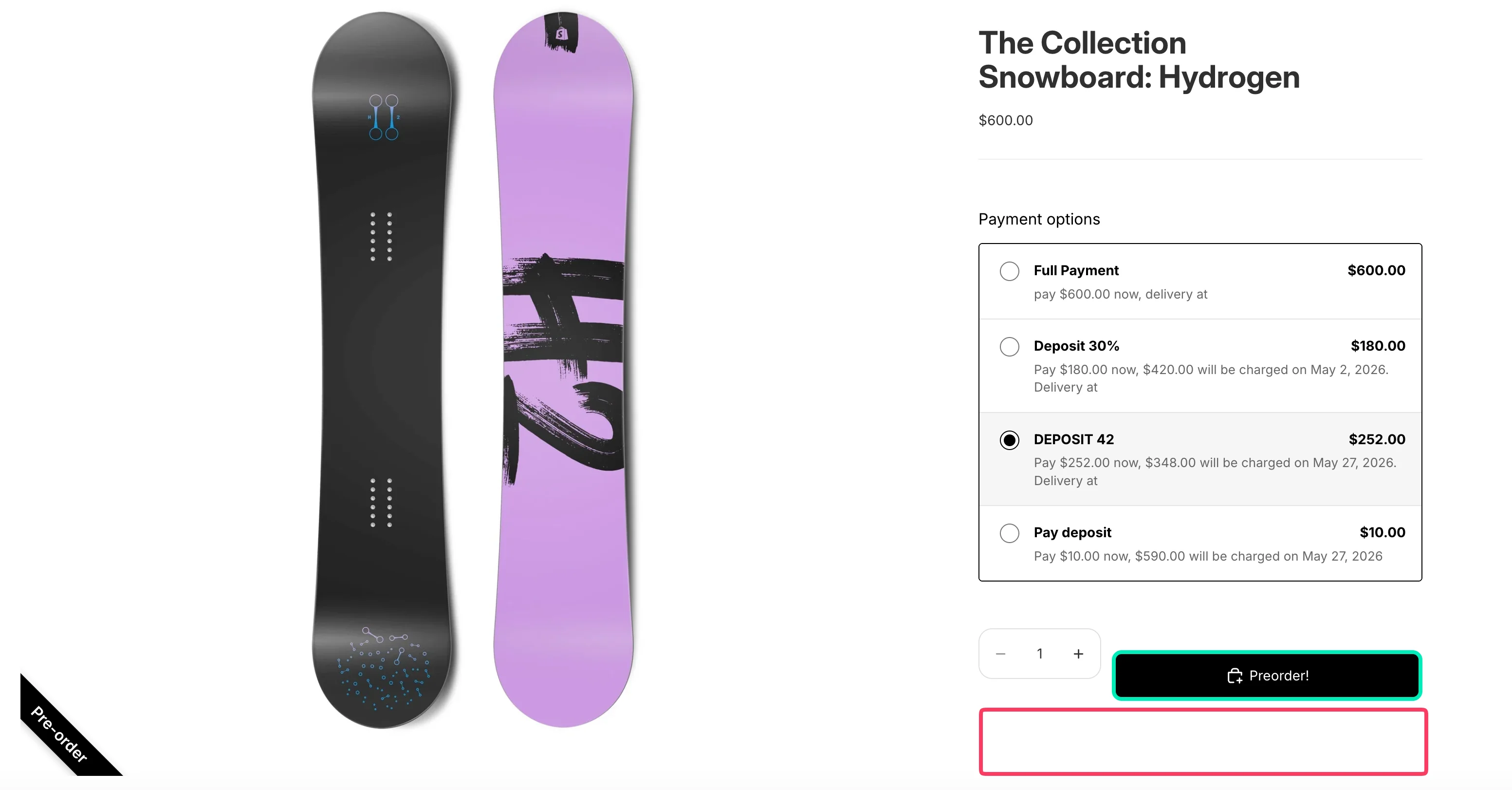
- Enter a single space character. An empty value will make Shopify restore the default text, so a space is required.
- Click Save.
Step 4. Verify on the Storefront
- Open your storefront and add a pre-order product to the cart.
- Go to the cart page and confirm that the disclaimer now shows your custom text — or is no longer visible, if you chose to hide it.
- Clear your browser cache or use an incognito window if the old text still appears.
Notes and Limitations
- This string is managed by Shopify, not by K1 Pre-Order. If you switch themes or reset theme content, your custom text may need to be re-applied.
- The disclaimer only appears when the cart contains an item flagged as a deferred, subscription, or recurring purchase (which includes K1 pre-orders with deposits or delayed fulfillment).
- Changes to theme content apply to the currently published theme. If you edit a draft or duplicated theme, publish it for the change to take effect on the live store.
- If you keep the default
cancellationPolicyLinkvariable, make sure a Cancellation policy is configured under Settings → Policies in Shopify so the link renders correctly.