Overview
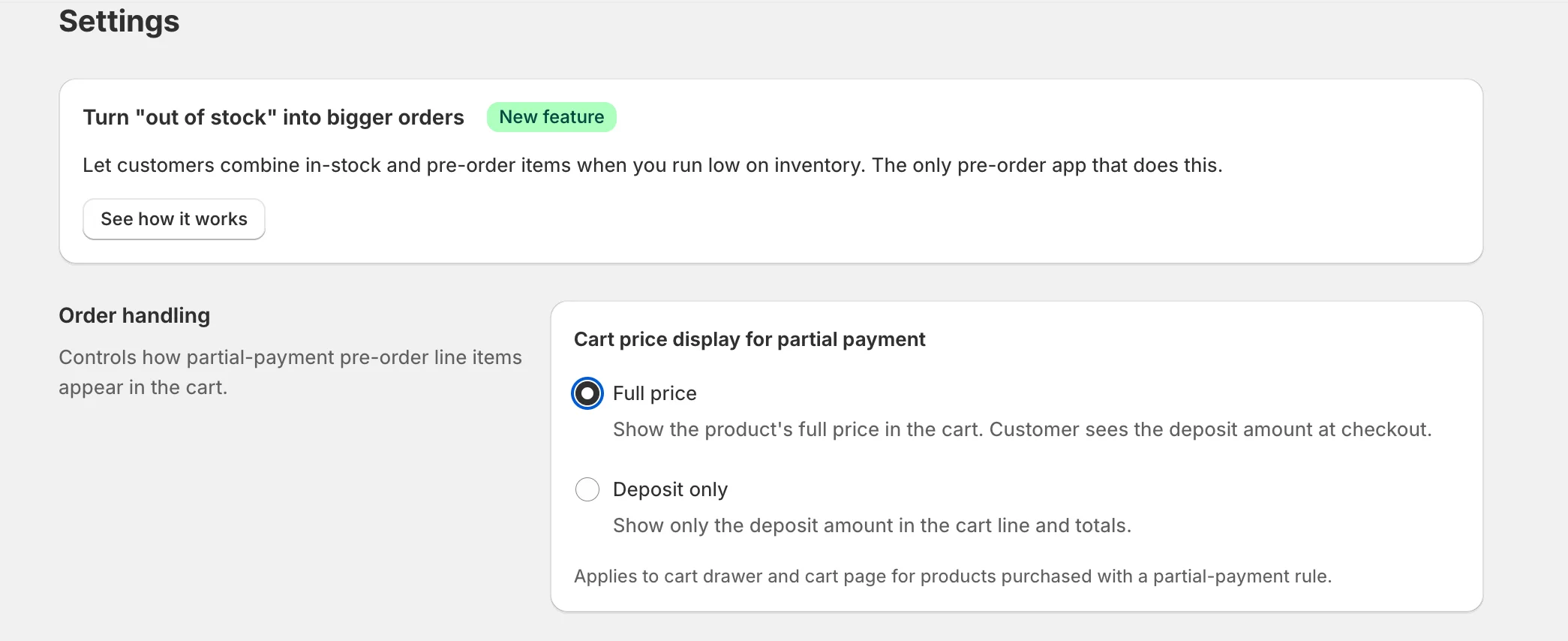
The Cart price display setting in Settings → Cart display controls how partial-payment pre-order items appear in your storefront cart:
- Full price (default) — the cart line and totals show the product's full price.
- Deposit only — the cart line and totals show only the deposit amount the customer pays today.
In Deposit only mode, discounts in the cart can sometimes look inconsistent with the displayed deposit price. This article explains why that happens, what is affected, and how to decide which mode fits your store.
Why This Happens
When a customer adds a partial-payment pre-order product to the cart, Shopify treats the line as a purchase option (selling plan) item. Behind the scenes, Shopify keeps computing subtotal, discounts, taxes, and totals from the full product price, because that is the contractual product price stored on the line.
K1 PreOrder's Deposit only mode does not change that calculation. It only replaces the visible price on the cart line (and the visible Subtotal / Estimated total) with the deposit amount, so the customer sees what they actually pay today.
You can think of it as two parallel layers:
- Shopify's calculation layer — uses the full product price for discount math, taxes, and totals.
- K1's visual layer in the cart — swaps the full price for the deposit amount, purely for display.
Most of the time these two layers stay consistent. But when a discount is applied, Shopify still calculates it against the full price — not the deposit — and the result can look unexpected next to a visually reduced deposit line.
Examples of What Can Look Incorrect
Percentage discount on the product
A 10% discount on a $200 pre-order product with a 25% deposit:
- Shopify calculates: 10% × $200 = $20 off.
- Cart in Deposit only mode shows: line price $50 (deposit), discount −$20.
- To the customer it can read as "$20 off a $50 item" — a 40% discount — instead of the intended 10%.
Fixed-amount discount larger than the deposit
A $30 off code on a $200 product with a 10% deposit ($20):
- Shopify still applies $30 against the full $200 line.
- Cart in Deposit only mode shows: line price $20, discount −$30.
- The visible math can go to zero (or look negative) even though the actual checkout charge is calculated correctly by Shopify.
Tiered or threshold-based promotions
Shopify evaluates "spend over $X" thresholds against the full product price. In Deposit only mode, the cart total looks smaller, but a promotion may still trigger (or not trigger) based on the underlying full price — so a discount can appear to "kick in" or "not kick in" at moments that look unexpected to the customer.
What Is NOT Affected
The Deposit only display mode only affects the cart drawer and cart page. The following are unaffected and continue to use Shopify-native amounts:
- Checkout pages — show the deposit due now and the balance due later.
- Order confirmation page.
- Customer account / order history.
- Product page price.
- Final charge amount at checkout.
- Balance invoice sent for the remaining amount.
How to Decide Which Mode to Use
What You Can Do if You Need Both
If you want the clarity of Deposit only display but also need to run discounts on pre-order products, consider one of the following:
- Limit discount campaigns to non-pre-order products using Shopify's discount conditions (collections, product exclusions, or tag-based rules).
- Communicate the deposit context on the product page or in the cart disclaimer text — see Customizing or Hiding the Cart Page Disclaimer Text.
- Temporarily switch back to Full price during active promotion periods, then switch back to Deposit only once the promotion ends. The change applies to all new cart renders immediately.
Notes and Limitations
- This is a Shopify platform behavior, not a bug in K1 PreOrder. K1 cannot override how Shopify calculates discounts on selling-plan lines.
- The setting is global to your store — it applies to all rules that use Partial Payment. You cannot enable it per rule or per product.
- Toggling the setting applies to all new cart renders immediately. Customers with an already-loaded cart may need to refresh to see the new display.
- For more on partial payments, see Configuring Partial Payments and Deposits.